← Otto User GuideWorkspaces
A workspace is a full-screen page of windows. Otto arranges them in a horizontal row and slides between them.
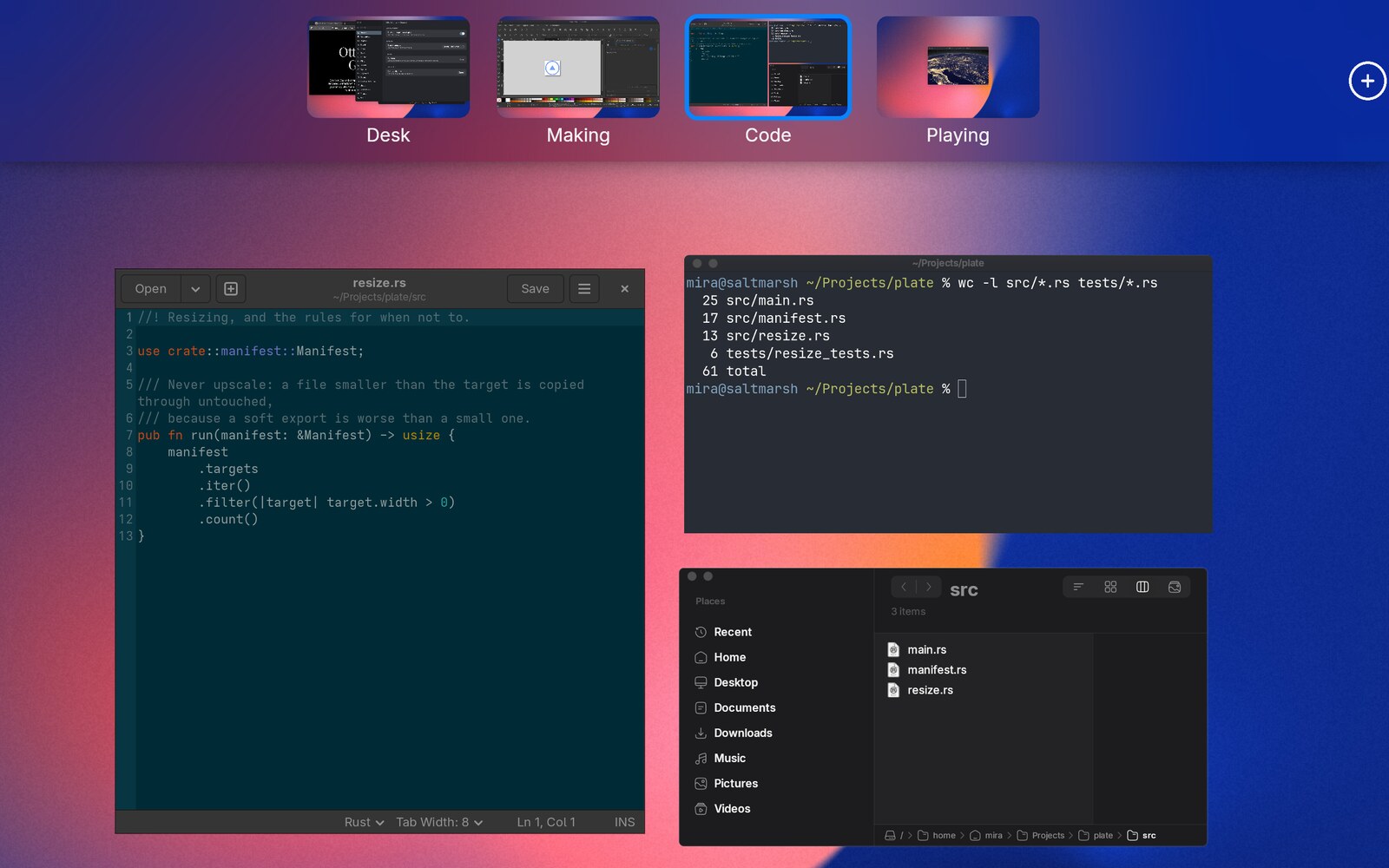
Per-monitor workspaces
Each monitor has its own independent set of workspaces. Adding a workspace on your laptop screen does not add one on the external monitor; switching to workspace 3 on one screen leaves the other where it is; and the two can have different numbers of workspaces.
This applies to virtual outputs too. A screenshare or RDP output has its own workspaces exactly like a physical monitor.
Every monitor always has at least one workspace.
Switching
| How | What it does |
|---|---|
Ctrl+1 … Ctrl+4 | Jump to workspace 1–4 (the shipped bindings) |
| Three-finger horizontal swipe | Slide between adjacent workspaces |
| Click a preview in the workspace selector | Jump to that workspace |
Keyboard and gesture switching both act on the focused monitor, the one your pointer was last over.
More than four workspaces? Add bindings with a higher index:
"Ctrl+5" = { builtin = "Workspace", index = 4 }
"Ctrl+6" = { builtin = "Workspace", index = 5 }
The index is zero-based, so index = 4 is the fifth workspace. Switching to a
workspace that does not exist does nothing.
Swipe behaviour
The desktop tracks your fingers as you swipe, so you can see the neighbouring workspace arrive and reverse out of it. Otto snaps on release based on both position and velocity — a fast flick advances even from a short movement.
At the first and last workspace the slide meets rubber-band resistance rather than a hard stop.
The workspace selector
Open Exposé (PageUp, or three-finger swipe up) and a
strip of live workspace previews appears above the window grid. Each monitor
shows its own strip, listing only its own workspaces.
| Control | Effect |
|---|---|
| Click a preview | Switch that monitor to that workspace |
Click + at the end of the strip | Add a workspace to that monitor |
Hover a preview, click the × | Remove that workspace from that monitor |
| Click a workspace label twice | Rename that workspace in place |
The previews are live: they show the actual current content of each workspace, at that monitor’s own size and scale, not a stale screenshot.
Adding and removing are animated: a new preview grows in from zero width, and a removed one fades out as its slot collapses, the remaining previews sliding across to close the gap before the workspace actually goes.

Removing a workspace
- A monitor’s last remaining workspace cannot be removed.
- Windows on the removed workspace are not closed. They move to that monitor’s current workspace.
- A workspace holding a fullscreen window with content in it cannot be removed.
Renaming a workspace
Click a workspace’s label a second time and it turns into a text field, with
the current name selected. Type to replace it, or click into the text to edit
it. Selection works as it does anywhere else: drag to select, double-click a
word, triple-click everything, Ctrl+A, shift-arrows.
Enter keeps the name, Escape throws the edit away, and clicking elsewhere
keeps it. While you are typing, no keystroke reaches a window and no shortcut
fires.
Clearing the name puts the default Workspace N back. Names are saved to your
config file and come back on the next start, per monitor.
The name is written into that workspace’s own record, keyed by monitor and position, alongside anything else you have set on it, such as whether it tiles and its gap override if you gave it one:
[workspaces.entries."eDP-1:0"]
name = "Mail"
tiling = true
inner_gap = 0
outer_gap = 0
Every field is optional; a workspace you have not touched has no record at all. Positions count from 0, and they shift when you add, remove or drag a workspace — Otto rewrites the records to match, so a name follows its workspace along the strip.
Configs written by an older Otto kept names in a names table and gaps in a
[workspaces.gaps] table instead. Both are still read and folded into the
records above; Otto drops them from the file the next time it writes this
section.
Moving windows between workspaces
Open exposé, then drag a window preview onto a workspace thumbnail in the selector strip. Release, and the window moves to that workspace; the grid relaws out around the gap it left.
Dropping outside any thumbnail cancels. The preview springs back to where it came from.
Moving windows between monitors
Drag a window across the boundary between two monitors and it moves to the other one, keeping its own workspaces and geometry. While it straddles the edge only one monitor draws it at a time; a live preview on both is planned but not implemented.
Fullscreen and workspaces
Fullscreening a window puts it on a workspace of its own, on the monitor it already lived on, and scrolls only that monitor to it. Other monitors do not move. Leaving fullscreen restores the window to its previous size and workspace and removes the temporary one.
What is shared and what is not
| Element | Scope |
|---|---|
| Workspaces | Per monitor |
| Workspace selector | Per monitor, one strip each |
| Exposé grid | Per monitor, all open together |
| Dock | Primary monitor only |
| Top bar | Primary monitor only |
| App switcher | One panel; moves to the monitor under the pointer |
Configuring
Workspaces are not configured in TOML: there is no “number of workspaces” setting. They are created and removed at runtime through the selector, and each monitor starts with one.
Wallpaper and background colour are set globally under Theming.
What you can tune is how the desktop scrolls between them:
[workspaces]
switch_duration = 0.6   # seconds the scroll takes
switch_bounce = 0.1     # 0.0 settles flat, higher overshoots and springs back
That spring is what a keyboard shortcut, the workspace selector, and an app
switcher (Cmd+Tab) selection whose window lives on another workspace all
animate with. Lower switch_duration for a snappier switch. A trackpad swipe
keeps its own shorter spring, because it starts from wherever your fingers left
the workspaces.
Not yet supported
- Dragging a workspace from one monitor to another
- Assigning applications to a workspace by rule
- Remembering how many workspaces each monitor had across a restart (their names are remembered, the count is not)