← Otto User GuideWindow Management
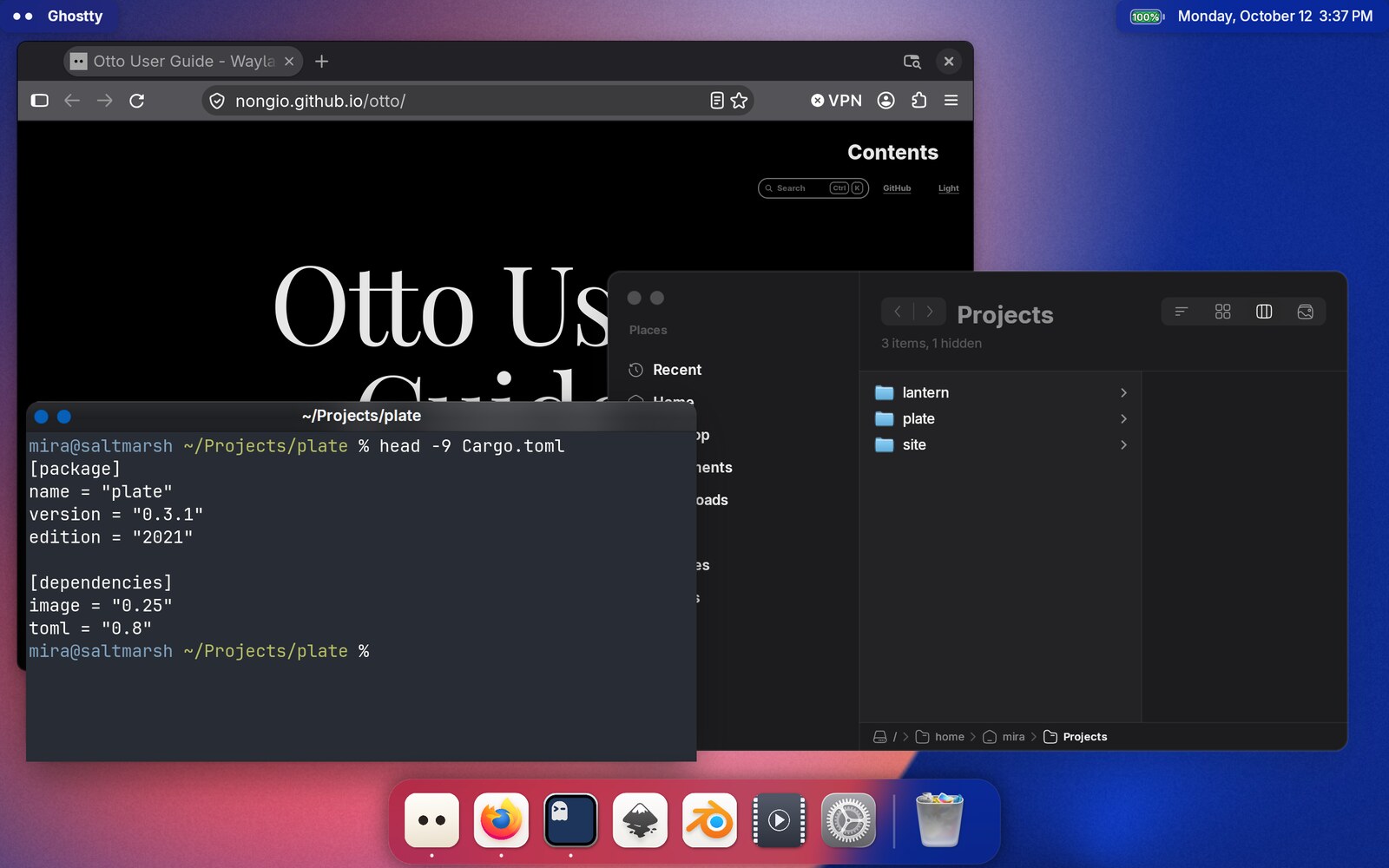
Otto is a stacking window manager by default: windows float, overlap, and go where you put them, with snap-to-half shortcuts, smart initial placement and animated state changes. Any workspace can be switched to a managed tiling layout, where windows share the screen in a tree of splits, and switched back to stacking again. This works one workspace at a time, so the others are unaffected. See Tiling.
Focus and raising
Otto uses click-to-focus. Clicking anywhere in a window raises it to the top of the stack and gives it keyboard focus. The window comes forward when you let go of the button, so you can drag a file or some text out of a window behind others and drop it in front: a drag leaves the window it started from where it was. Focus also follows:
- clicking the app’s icon in the Dock,
- selecting it in the App Switcher or Exposé,
- an
xdg-activationrequest from another app (for instance, a link opening in your browser raises the browser).
The focused window’s name and menus appear in the Top Bar.
Moving and resizing
Drag a window by its title bar to move it; drag an edge or corner to resize.
On a window Otto decorates, both are the compositor’s own: the title bar starts the move, and a narrow strip along the window’s four edges and corners starts a resize. That strip is about six points wide, and hit-tested ahead of everything else. Such a window draws no frame of its own and so never asks for a resize; the border is what gives it one. The cursor changes over it to name the edge you would grab.
On a window that draws its own decorations, both are driven by the application: Otto starts the move or resize when the app asks it to, which is what happens when you grab the parts of the window its toolkit designates for that.
Dragging a maximized window unmaximizes it and keeps the grab point under your pointer, proportionally. The window shrinks to its restored size around where you grabbed it rather than jumping away.
There is no modifier-drag (Alt+drag) to move a window from anywhere yet.
Drag to tile
Hold Ctrl while dragging a window and Otto previews where it would land: a
translucent rectangle over the target area, animating as you move between
zones. Release to snap the window there; let go of Ctrl first and the drag
stays an ordinary move.
| Where the pointer is | Zone |
|---|---|
| Top band of the usable area, its middle half | Maximize |
| Left of centre | Left half |
| Right of centre | Right half |
Only a narrow column down the middle arms no zone at all, so nudging a window off centre is enough to tile it to that side.
Decorations
Otto draws window decorations itself. A client that binds xdg-decoration
without stating a preference, or that unsets the one it had, is told
server-side, and gets an Otto-drawn title bar. The compositor owns that strip:
it is hit-tested before the client’s surfaces, so dragging it moves the window
and the controls work even when the application is busy.
You get two controls by default, close and minimize. The third, the zoom dot, is off, because a double click on the title bar zooms a window anyway:
window_controls_side = "left"    # or "right"; "left" is the default
show_maximize_button = false     # the default; set true for the zoom dot
window_controls_side picks which end of the title bar the controls sit at. On
the right the three swap order, so close stays the outermost one. Both settings
apply immediately: Otto rebuilds the title bars it draws itself, and tells the
applications drawing their own through the desktop portal.
Clients that explicitly ask for client-side are honoured. GTK and Electron apps request it and keep drawing their own title bars, so those look like whatever the toolkit does.
Otto answers on both decoration protocols: xdg-decoration, which Qt and KDE
apps use, and KDE’s older org_kde_kwin_server_decoration, which is the only
one GTK applications look for. Ghostty’s window-decoration = server, for
instance, reaches Otto through the latter.
The ToggleDecorations shortcut action flips the decoration mode of every
window that negotiated one, which is mostly useful for testing how apps
respond.
Maximize
ToggleMaximizeWindow (Ctrl+Up by default) maximizes the focused window to
fill its monitor’s usable area, minus any exclusive zones claimed by the top bar
or other panels. Pressing it again restores the previous geometry.
The transition is animated: the window grows or shrinks into place rather than snapping.
Applications with their own maximize button use the same path.
Tiling to halves
| Shortcut | Effect |
|---|---|
Ctrl+Left | Snap the focused window to the left half of its monitor |
Ctrl+Right | Snap it to the right half |
These are one-shot geometry changes, not a managed tiling mode: nothing keeps the two windows in sync, and moving or resizing either one afterwards just works normally. Tiling a maximized window unmaximizes it first.
The same three targets are reachable with the pointer. See Drag to tile.
A workspace can also be put into a managed tiling mode, where every window gets a cell of its own, nothing overlaps, and Otto keeps the layout together as windows open and close. Windows can be moved and resized there from the keyboard or with the pointer. See Tiling.
Fullscreen
Fullscreen is driven by the application (a video player’s fullscreen button, a
game’s settings, F11 in a browser). Otto animates the window into the
monitor’s full extent and hides the dock while it is up.
Fullscreen windows are the best case for Otto’s direct-scanout path on the
--tty-udev backend: a fullscreen window can be handed straight to the display
hardware without going through composition at all, which is why fullscreen games
and video playback are noticeably more efficient. This includes X11 games under
XWayland.
Minimize
Minimizing sends the window into the Dock with a genie animation — the window stretches and funnels down into the dock’s minimized-windows area. Clicking its thumbnail in the dock plays the animation in reverse.
The animation itself has no settings; dock.genie_scale and dock.genie_span
shape the dock’s icon magnification, not this. See Dock.
Minimized windows are excluded from Exposé.
Where new windows appear
Otto places a new window where it overlaps existing windows the least, rather than cascading from a corner.
It considers the four corners of the usable area first (clockwise from top-left), then positions flush to the right edge and bottom edge of every window already on screen. Whichever candidate produces the smallest total overlap area wins, with ties going to the earlier candidate — so an empty top-left corner is preferred over a technically-equal position elsewhere.
Windows that end up disjoint rather than overlapping also stay eligible for hardware plane scanout, which is a rendering win, not just a visual preference.
Applications that position their own windows (dialogs anchored to a parent, tooltips, menus) are unaffected; this only governs top-level windows that leave placement to the compositor.
Closing
CloseWindow politely asks the focused window to close, the same as clicking
its close button. The application can still prompt you about unsaved work.
There is no force-kill shortcut.
ApplicationSwitchQuit (Ctrl+Q by default, while the app switcher is open)
quits the highlighted application, closing all of its windows.
Moving windows between workspaces and monitors
Drag a window preview in Exposé onto a workspace thumbnail in the selector strip to move it there. Dragging a window across the boundary between two monitors moves it to the other monitor. See Workspaces.
X11 applications
X11 apps run under XWayland and are managed exactly like native ones: same focus, tiling, minimize and exposé behaviour.
Two things get special handling:
- Globally-active clients (many Java and game-engine applications) do not take focus the normal way. Otto explicitly sets X11 input focus for them, so keyboard input reaches them.
- Scale. Otto exports the output scale to X11 clients via XSETTINGS, so they render at the right size on HiDPI displays instead of at 1×.
What is not there yet
- Quarter tiles, and tiling without holding
Ctrl - A floating layer inside a tiling workspace: dropping a tile outside the layout puts it back in the tree at the nearest edge rather than floating it
- A modifier-drag to move or resize from anywhere in a window
- Window rules (per-app placement, size, workspace assignment)
- Always-on-top / sticky windows