← Otto User GuideSettings
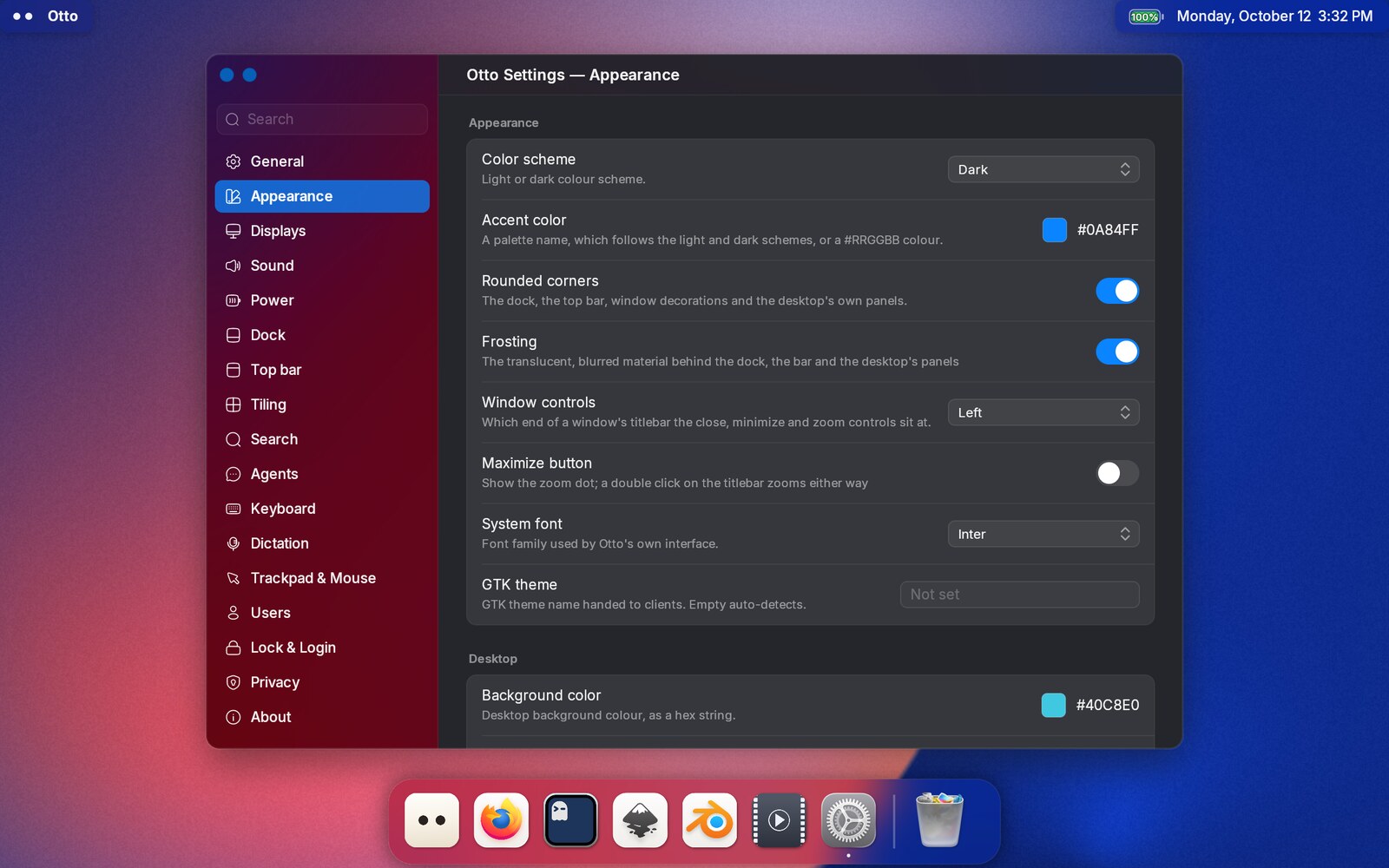
otto-settings edits Otto’s configuration while it is running, so you can
change how the desktop behaves without hand-writing TOML and without restarting
anything you don’t have to.
First version. The app covers a good share of the configuration and is meant for daily use, but not every option in
otto_config.tomlhas a control yet. Anything missing is still editable by hand. See Configuration.
Opening it
Launch Settings from the Dock or the launcher, or run otto-settings.
What it edits
| Pane | Covers |
|---|---|
| General | The window switcher, the display language, the renderer, and where the configuration file is |
| Appearance | Light or dark, accent colour, corners, frosting, window controls, interface font, GTK theme, the desktop background (image, layout, zoom and position — click the preview to keep a part in view) and widget, the desk, pointer and icon themes, and the top bar’s clock |
| Displays | Resolution, refresh rate and arrangement of connected monitors, and the global interface scale |
| Dock | Size, position, auto-hide, magnification, icon colorization |
| Keyboard | Layout and options, repeat rate, and the shortcut list |
| Dictation | The speech-to-text engine and whether its server runs, the language you speak, the hotword boost, and whether dictation starts at login |
| Trackpad & Mouse | Tap to click, drag lock, natural scrolling, click method, scroll and pointer speed |
| Sound | Interface sounds on or off and which sound theme to use, then a mixer like pavucontrol’s: each app’s volume and device, each device’s port, volume, mute and whether it is the default, and each sound card’s profile |
| Power | What the lid switch and the power button do |
| Lock & Login | Auto-lock timeout, which lock screen and greeter to run, and what starts at login |
| Search | What the file index is doing, which folders it covers, whether it skips code repositories and removable drives |
| Agents | The default agent for Ask, and each agent’s name, harness, command, permissions, model, folder and colour |
How it works
The compositor owns the configuration file; the app is a D-Bus client. It reads the schema Otto publishes and sets values, and a value you change in the app is written back to the config file. There is no file watcher, though: edit the file by hand while the app is open and the app will not notice. Reopen it to see the change.
Nearly everything applies the moment you change it: the Dock’s size and behaviour, the keyboard layout and repeat, the touchpad and pointer options, appearance and accent colour, the sound, power and lock settings. Only the interface font, the display scale, the GTK theme, the display language, the greeter and the renderer need a restart, and the app badges those and only those — a badge you can catch lying is a badge you stop reading.
Displays
The Displays pane probes the outputs that are actually connected, so the modes listed are the ones your monitor reports, not a guess.
Resolution, refresh rate, the primary display, arrangement and subpixel text
are saved under [displays.named.<connector>] in the config file and take
effect at the next login. They follow the connector the monitor is plugged
into, not the monitor itself, so a monitor moved to another port starts from
its defaults there. See Display configuration.
Scale is the exception: it is bound, but it is the global screen_scale, not a
per-display value.
Subpixel text is per display and is saved: it writes the monitor’s
subpixel key under [displays.named.<connector>]. Automatic leaves it to the
monitor and fontconfig; if letters show coloured edges, try BGR. It applies at
the next login, or when that monitor is next plugged in. See Display configuration.
Renderer
The Renderer row in General picks the GPU API Otto draws with: Vulkan, the
default, or OpenGL. It applies to the login session only, since a windowed session (otto --winit or
--x11) always uses OpenGL, and it takes effect after you log in again. Run
Settings inside a windowed session and the row shows OpenGL with a note
instead of a menu. Vulkan needs a working Vulkan driver for your GPU (on Arch,
vulkan-icd-loader plus vulkan-intel or vulkan-radeon). Where it cannot
start, Otto logs why and draws that session with OpenGL, and the row then says
Vulkan isn’t available here instead of offering it. The setting is renderer
under [rendering] in the config file, and otto --tty-udev --renderer gl overrides it for one session.
Shortcuts
The Keyboard pane lists the configured shortcuts and lets you add and remove
them. It edits the same [keyboard_shortcuts] table the config file has, so
anything you bind here is a normal entry you can also read and edit by hand.
Search
Search in Files finds things through a file index that LocalSearch keeps up
to date in the background. The Search pane shows what it is doing: up to date
with how many files it holds, indexing with how far it has got, paused, or not
running (with Start). If LocalSearch isn’t installed, the pane says so and
nothing else: install the localsearch package and open it again.
Each folder the index looks in has its own row. The − at the end of a row takes that folder out, and Choose… on Add Folder opens a folder picker to add one. A folder already in the list, or inside one that is, isn’t added twice; the pane says which folder already covers it. Take every folder out and nothing is indexed, so search finds nothing.
Skip code repositories leaves out any folder with a .git folder inside,
and Search removable drives indexes USB sticks and other drives while
they’re plugged in. Everything applies at once. If results look out of date,
Re-index on the Re-index Home row has the index check your home
folder again.
These live in the [search] section of Otto’s configuration, and Otto hands
them on to LocalSearch:
[search]
folders = ["~", "/mnt/data"]     # ~ is your home folder
skip_code_repositories = true
index_removable_drives = false
A key you never set, here or in the file, leaves LocalSearch’s own value
alone. Open the pane directly with otto-settings --pane search.
Agents
The Agents pane edits ~/.config/otto/agents.toml, the file behind Ask. The
agent service only reads it when it starts, so changes here wait: press
Apply to save them and restart the service, or Revert to drop them.
Both stay greyed out until there is something to save. The Agent service
row at the top says whether the service is running, with Start or
Restart.
Apply also runs otto-agents plugins install, which gives every harness
other than Claude Code its own copy of the instructions. Hermes is the one it
can’t finish: it needs a profile for each set of instructions, and the pane
tells you the hermes profile create line to run.
Only the keys you changed are written, so your comments and anything the pane
doesn’t show stay put. An empty model means the agent’s own default, and an empty folder means Ask
starts its sessions in a scratch folder, ~/.local/state/otto/ask. New agent adds
one on Claude Code, and each agent’s Rename and Remove buttons do what
they say; nothing is written until you apply.
Picking another Harness (Claude Code, Codex, OpenCode, Hermes or pi) sets
the agent up for it: the command, how it finds Otto’s instructions, and how
Ctrl+O continues a session in a terminal. It also clears the model, since
each harness names models differently.
The Command field changes the command alone.
Instructions picks who the agent is. Default runs the harness as
itself (Claude Code as plain Claude Code), otto is Otto’s own, and below
that are the agent files you’ve added under
~/.local/share/otto/plugins/<plugin>/agents/ (see
Add an agent of your own). Open next
to Instructions file opens the one in use, and Open next to
Configuration file opens agents.toml itself.
See Ask and Agents for what each setting does.
Dictation
The Dictation pane edits ~/.config/otto/dictation.toml. Changes apply to
the next dictation — Ctrl+D in the launcher, or otto-dictate toggle
bound to a shortcut for other apps — with nothing to restart. The
OTTO_DICTATE_URL, OTTO_DICTATE_LANGUAGE and OTTO_DICTATE_HOTWORDS_BOOST
environment variables still win over the file.
- Engine picks Parakeet, Whisper (English only) or CrispASR. Picking one
starts its speech server,
otto-stt-<engine>, stops the others, and makes it the one that starts at login. - Speech server says whether that server is running, with Start or
Restart. “Not installed” means the engine hasn’t been set up yet:
components/otto-dictate/engines/install.sh <engine>does it. - Language is the language you speak, or Automatic to let the engine tell. Parakeet and CrispASR always detect it themselves.
- Hotword boost appears with CrispASR: how strongly it favours the names the field expects, such as app names in the launcher. Above 6 it starts to garble the words around them.
- Start dictation at login turns otto-dictate’s entry in
~/.config/autostarton or off. Off hides the entry rather than deleting it. Otto only reads that folder withxdg_autostart = true(see Autostart).
From the keyboard
Every row is a Tab stop with a ring around it, and every control can be
operated without a pointer — Space or Enter flips a switch, presses a
button, opens a pop-up or starts editing a field; the arrows move a slider.
A pop-up opens on its current value rather than cycling, because each value
commits as soon as it is chosen. See
Accessibility.
Two things still need the pointer: dragging screens around the arrangement diagram in the Displays pane, and the shortcut lines in the Keyboard pane.
Not there yet
- Not every configuration key has a control; the file remains the complete surface.
- Display mirroring, which the compositor does not do yet either.