← Otto User GuideLogin Greeter
Otto can be your login screen. Started with --login, it runs as a host
compositor for a greeter client, the role cage plays for gtkgreet, and
otto-greeter provides the login panel.
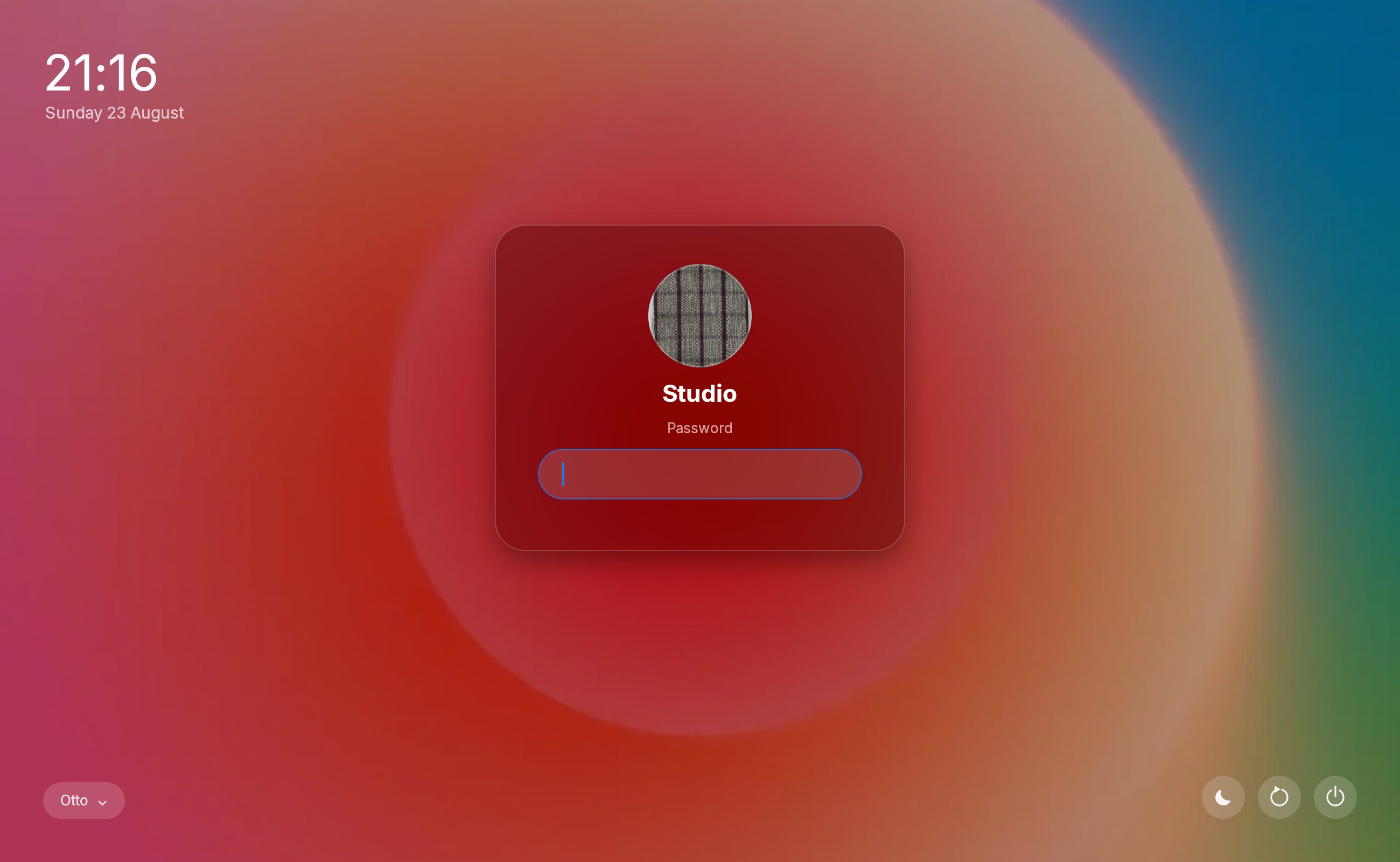
The same panel otto-lock uses, plus the session picker bottom left; click it to cycle through the installed sessions. The power controls bottom right sleep, restart and shut down the machine without logging in.
Authentication
Authentication is handled entirely by greetd. Otto links no PAM code and never touches your password.
Setup
1. Install greetd
sudo pacman -S greetd        # Arch
sudo dnf install greetd      # Fedora
sudo apt install greetd      # Debian/Ubuntu
2. Point greetd at Otto
# /etc/greetd/config.toml
[terminal]
vt = 1

[default_session]
command = "otto --login"
user = "greeter"
otto --login is the greeter session as far as greetd is concerned. Otto in
turn launches otto-greeter, which speaks greetd’s IPC over the $GREETD_SOCK
it inherits.
3. Enable it
sudo systemctl enable --now greetd
sudo systemctl disable gdm    # or sddm, lightdm — only one display manager
4. Optionally, choose a different greeter
# ~/.config/otto/config.toml — or /etc/otto/config.toml, see below
[login]
greeter_command = "otto-greeter"
greeter_args = []
What login mode changes
--login is a distinct mode, fixed for the life of the process. In it:
- One monitor. The first desktop connector brought up becomes the primary
output and is the only one driven. Every other connector, at startup or
hotplugged, is ignored: no mode set, no
wl_output. (VR headsets and other non-desktop connectors are still offered for DRM leasing, as usual.) - No desktop chrome. The dock, app switcher, exposé and workspace selector never appear, by shortcut or by gesture.
- No autostart.
exec_onceand XDG autostart are skipped. Exactly one client is launched: the greeter. - No auto-lock. The greeter is the screen; there is no session behind it to hide.
The greeter is tied to Otto’s lifetime: if Otto dies, the greeter gets
SIGTERM.
--login is orthogonal to the backend flag and can be combined with
--tty-udev (production) or --winit (development).
Which config it reads
Running as the greeter user, Otto can only read /etc/otto/config.toml. Put
anything you want the login screen to look like (theme, wallpaper, scale)
there rather than in your own ~/.config.
Using the greeter
The panel is a frosted card with an avatar, a username field, a password field and, where a reader is configured, a fingerprint mark. Same panel as otto-lock, plus a session picker.
The username is pre-filled
The field starts with the machine’s primary user — the login account with the lowest UID. greetd exposes no user list and there is no unprivileged record of who logged in last, so this is the closest thing to “whoever this machine is for”. On a single-user machine it is the only candidate.
The greeter submits it as soon as the panel exists, so the first thing you see is the password field or the fingerprint reader, not a name to confirm.
It is a suggestion, not a prefix:
- Typing any character replaces the whole name.
- Backspace clears it.
Escapeempties the field, which is how somebody else logs in.
Editing the field also clears the avatar; it belonged to the account being offered.
Fingerprint login
If your PAM stack includes pam_fprintd, the reader is offered alongside the
password.
A recognised finger draws the ridge mark in, in blue, over the grey resting mark. This takes about a second, deliberately: greetd kills the greeter the instant the session starts, so if the animation were quick you would never see that the login worked.
A missed finger is reported as an error and the reader asks again. The mark and the button stay up, because the reader is still what is being waited on.
Reaching the password past the reader: PAM is serialised, so a module
holding the stack cannot be hurried. Clicking “Enter Password” puts the field
back immediately and masks what you type, but holds the answer until the
password prompt actually arrives, which is what pam_fprintd produces when it
times out or runs out of tries, on a stack where it is sufficient rather than
required. The panel tells you what it is waiting for.
A held answer is only ever given to a password prompt. If a one-time-code prompt arrives instead, it is discarded and you are asked again: handing a password to the wrong prompt is worse than retyping it.
Session picker
Sessions come from .desktop files in /usr/share/wayland-sessions and
/usr/local/share/wayland-sessions, sorted by name, skipping entries marked
Hidden=true or NoDisplay=true.
If nothing is installed, a single fallback session running otto is offered.
Developing against it
You do not need root or a spare VT to work on the greeter. When GREETD_SOCK is
unset, otto-greeter uses a self-contained mock backend, so you can run it
inside a normal Otto session:
cargo run -- --winit --login
$OTTO_GREETER_COMMAND overrides [login] entirely (a whitespace-separated
argv), and $OTTO_GREETER_SESSION overrides session discovery with one argv.
Both are for testing uninstalled builds.
Troubleshooting
Black screen, no panel. Otto started but the greeter did not. Check
journalctl -u greetd. A common cause is otto-greeter not being on the
greeter user’s PATH.
“Starting session…” forever. start_session succeeded but greetd’s exec did
not happen. The greeter gives up after a few seconds and returns to the username
field rather than hanging; check the session’s Exec line in its .desktop
file.
The login screen is unstyled or the wrong theme. It reads
/etc/otto/config.toml, not your user config. The greeter user cannot see
your home directory.
Only one monitor lights up. That is by design in login mode. Every session monitor comes back once you are logged in.
The password is rejected. That is greetd and PAM, not Otto. Check the PAM
stack greetd uses (/etc/pam.d/greetd).
See also
- Lock Screen: the same panel, for locking an existing session. Different lifecycle: a lock screen sits over a session that outlives it; a greeter authenticates a user who has no session yet.