← Otto User GuideCommand Palette
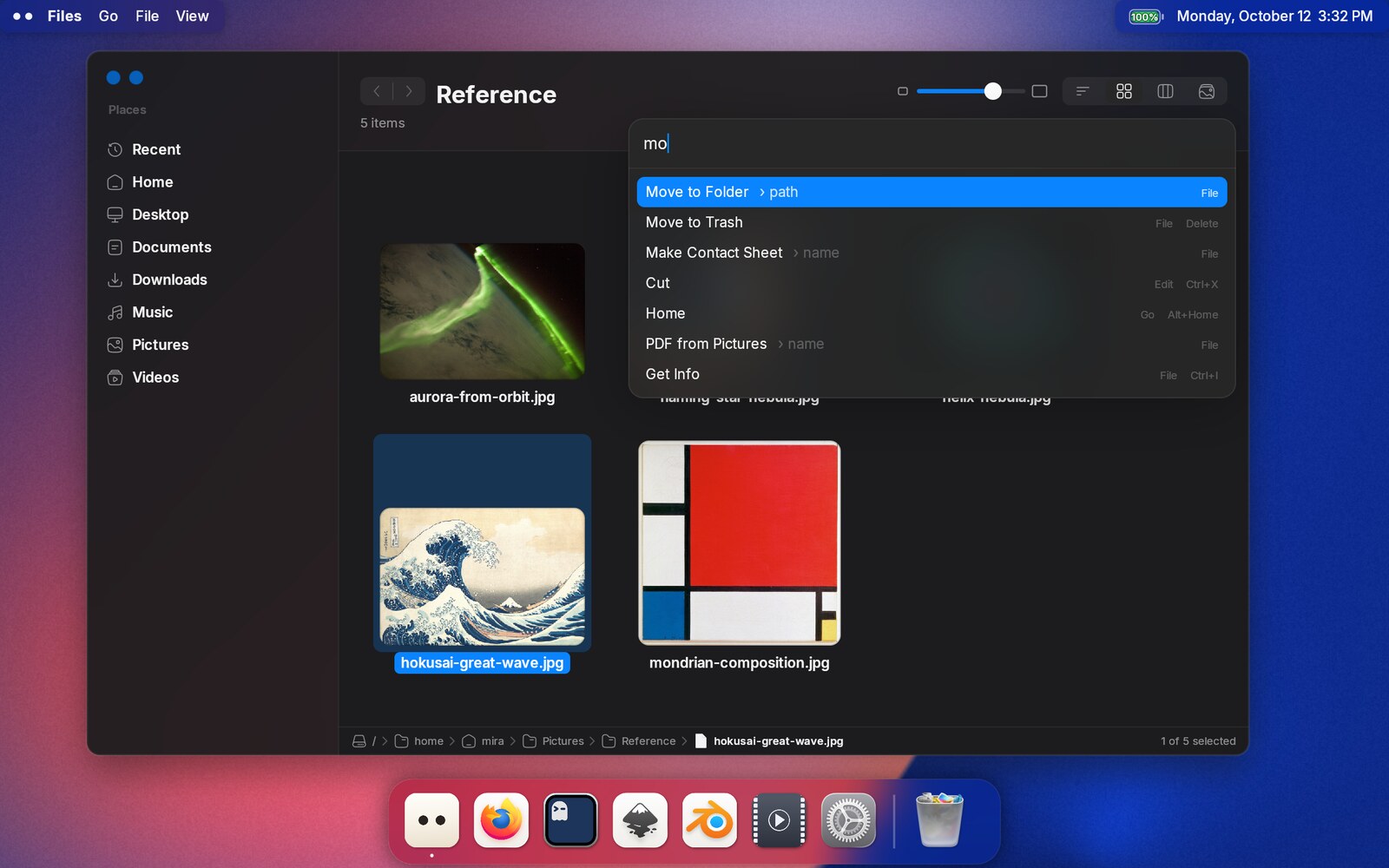
The command palette is a keyboard way into everything a Files window can do. Press
Ctrl+P, type a few letters of what you want, press Return. You do not need
to know which menu a command lives in or what shortcut it has.
It finds commands, not files. To find a file, use type-ahead, Ctrl+L or
Ctrl+F — see Files.
Opening and closing
Ctrl+Popens it, over the top right of the window.Ctrl+Pagain closes it. View → Command Palette… in the top bar opens it too.Escapecloses it without running anything. So does clicking outside the card, or switching to another window. A click outside only closes the command palette; it does not also select the file under the pointer.- Closing it leaves the window exactly as it was. Your selection, cursor and scroll position are not touched.
- Drag it by its top band, the line you type into. It can hang off the edge of the window or sit out on the desktop, but it always stays on the display. It opens where you last put it, and remembers that across restarts.
The command palette is only in the Files window. It is not in the file picker that opens when another application asks you to choose a file.
Finding a command
With nothing typed, the command palette lists every command you can use right now, grouped under Go, File, Edit and View. Once you start typing, the groups go away and the list is sorted by how well each command matches. Each row shows its group as a small badge.
Matching is loose on purpose:
- The letters only have to appear in order, so
nwflfinds New Folder. - A space starts a new word, so
mo trfinds Move to Trash. - Commands also match on keywords, not just their titles.
↑ and ↓ move the highlight, Home and End jump to either end, and
Return runs the highlighted command. You can also use the mouse: the row
under the pointer is highlighted, and a click runs it.
If a row has a keyboard shortcut, it is shown on the right. That makes the command palette an easy way to learn the shortcuts you use most.
Commands that can’t run are not listed. You won’t see Paste when the clipboard is empty, Move to Trash when nothing is selected, or Put Back outside the Trash. If you can’t find a command, that is usually why.
Commands that ask a question
Some commands need more from you: a path, a name or a pattern. These rows show
what they need after the title, dimmed, as in Go to Path › path.
Return or Tab on one of them does not run it straight away. The field
changes to a prompt instead:
Go to path: ~/Documents
The part before the colon is fixed. What you type after it is your answer.
- The list below shows suggestions: folders for a path, your sidebar places
for Go to Place, the four views for Change View.
↑↓andReturnpick one. Tabcompletes a path the wayCtrl+Ldoes.- If your answer doesn’t work, for example a path that doesn’t exist or a name that is already taken, the command palette stays open. It shows the reason, and your text is still there to fix.
Backspaceon an empty answer, orEscape, goes back to the command list with your search as you left it. PressEscapea second time to close the command palette.
For choice lists such as Sort By or Change View, the current setting is already highlighted.
What is in it
The command palette doesn’t add anything the window can’t already do. Each command behaves exactly as its menu item or shortcut does, with the same undo entry.
| Group | Commands |
|---|---|
| Go | Back, Forward, Up, Home, Go to Path, Go to Place, Open |
| File | Get Info, Rename, New Folder, Move to Trash, Move to Folder, New Folder with Selection, Rename N Items, Run text recognition (pictures, with a recogniser installed) |
| File (in the Trash) | Put Back, Delete Immediately, Empty Trash |
| Edit | Cut, Copy, Paste, Select All, Select Matching, Undo |
| View | List, Icon and Column view, Change View, Sort By, Show or Hide Hidden Files, Quick Look, Search |
The commands in bold ask you something. Where the menus name what a command will affect, so does the command palette: you’ll see “Move 3 Items to Trash”, not just “Move to Trash”.
A few of them work a little differently from their menu versions:
- Rename asks for the new name in the command palette, with the current name filled in. It doesn’t open the inline rename field. Leaving the name unchanged does nothing.
- New Folder with a name creates exactly that folder, and refuses if the name is taken. It never quietly makes “reports 2” instead. Leave the name empty to get the toolbar’s behaviour: a default name, then inline rename.
- New Folder with Selection creates a folder and moves the selected items
into it. While you type the name, the list shows the items that will go in.
Press
↓to reach the list, thenSpaceon an item to leave it where it is, the same way as when renaming several files. It is a single undo step. Undoing it moves the files back out, then removes the folder.
Select Matching
Select Matching takes a pattern like *.png and selects the matching
files. The selection updates as you type, and a note under the field says how
many files match, for example “3 of 61 selected”.
- It works on the files you can see. Hidden files are left out unless they are showing.
- Matching ignores case until your pattern includes a capital letter.
*.pngalso findsPHOTO.PNG, but*.PNGonly finds uppercase names. Returnkeeps the selection.Escapeputs back the selection you had before.
Renaming several files at once
Select two or more files and choose Rename 3 Items. You type a single name
pattern, and each file’s name is filled in from it. The field starts as
{name}, so pressing Return without typing anything changes nothing.
As you type, the list shows a preview of every rename, for example
IMG_001.jpg → Holiday 1.jpg.
| Write | Gets |
|---|---|
{name} | The original name, without its extension |
{ext} | The extension, without its dot |
{n} | The file’s number in the selection, starting at 1 |
{n:3} | That number padded to three digits: 001 |
{n@10} | The number, counting from 10 (combine with padding: {n:3@10}) |
{1}, {2}, {-1} | Words of the original name. Words are split at spaces, _, - and .; negative numbers count from the end |
{2..}, {1..3}, {..-2} | A run of words, joined with spaces |
{name:1..4}, {name:-3..} | Characters of the original name, by position |
Positions start at 1, and ranges include both ends. So for IMG_2024_Paris.jpg,
{3} is Paris and {2..} is 2024 Paris.
If the pattern has no {ext} and no dot, each file keeps its own extension.
Holiday {n} turns IMG_001.jpg into Holiday 1.jpg.
If two files would get the same name, or a name belongs to another file in the
folder, that line turns red. Return then won’t run until you fix it. Swaps
are fine: renaming 1 to 2 while 2 becomes 3 works.
Leaving a file out. Press ↓ to move from the field into the preview,
then press Space on a file to skip it; press Space again to include it.
Clicking a line does the same. A skipped file is shown struck through, and the
numbering closes up without it. Type again to go back to the field. Skipped
files stay skipped.
The whole rename is one undo step.
Adding your own commands
Any script you put in ~/.config/otto/files-scripts/ can add commands to the
command palette. They also appear in the right-click menu when they apply to
the selection. Script commands work like the built-in ones: they have previews
and undo, and they run in the background. If a command asks a question, the
right-click menu opens the command palette at its prompt.
Custom Commands in Files walks through writing one and describes everything a script can do, and PDF from Pictures builds a longer one that turns a selection of pictures into a document.
Not there yet
- The command palette doesn’t remember your last command.
- A path must exist. Typing part of a name doesn’t search for it.