← Otto User GuideExposé & App Switcher
Two ways to find a window: see them all at once (Exposé), or step through applications (App Switcher).
Exposé
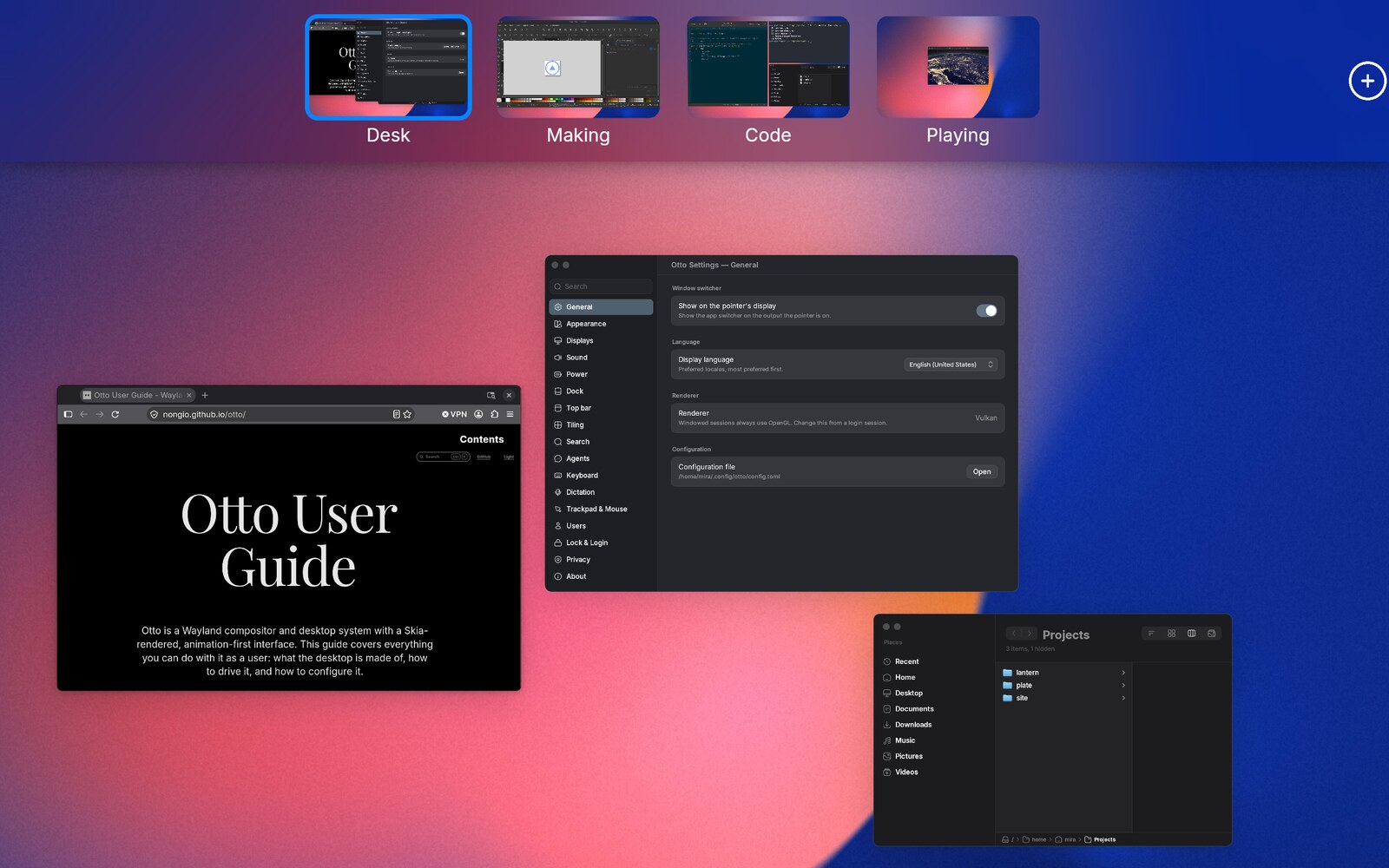
Exposé scales every window on the current workspace down into a packed grid, so you can see all of them at once.
Opening and closing
| How | Effect |
|---|---|
PageUp (Prior) | Toggle exposé |
| Three-finger swipe up | Open, tracking your fingers |
| Three-finger swipe down | Close |
Escape, or click empty space | Close |
The gesture is continuous: the windows shrink and spread in step with your fingers, so you can peek at the grid and swipe back down to abandon it. On release, Otto springs open or closed depending on how far you got and how fast you were moving.
Exposé opens on every monitor at once, each showing its own current workspace.
The grid
Windows are packed into a flowing grid that preserves each window’s aspect ratio. Nothing is ever scaled up: a small window stays small rather than being blown up to fill a cell.
- Hover a preview to highlight it with the accent colour and show its title.
- Click a preview to focus that window and close exposé. If the window lives on a different workspace or monitor, that screen scrolls to it.
- Drag a preview onto a workspace thumbnail in the selector strip above to move the window there. See Workspaces.
Minimized windows are not shown.
Previews are live, not screenshots. A playing video keeps playing in its preview.
Desktop widgets
Widgets that live on the desktop (anything on the layer-shell bottom layer, such as a conky panel or a desktop clock) stay on screen while exposé is open and fade with the rest of the desktop instead of vanishing the moment the gesture starts. They are deliberately left out of the workspace previews in the selector strip, which show the wallpaper alone.
The workspace selector
While exposé is open, a strip of live workspace previews sits above the grid,
with a + to add a workspace and an × on hover to remove one. Each monitor
gets its own strip showing only its own workspaces. See
Workspaces.
Show desktop
A separate mode: PageDown (Next), or a four-finger pinch out, slides all
windows off toward the edges of the screen to reveal the wallpaper. Press again,
or pinch in, to bring them back.
This is not the same as exposé. The windows move aside rather than scaling into a grid, and there is no selector strip.
App Switcher
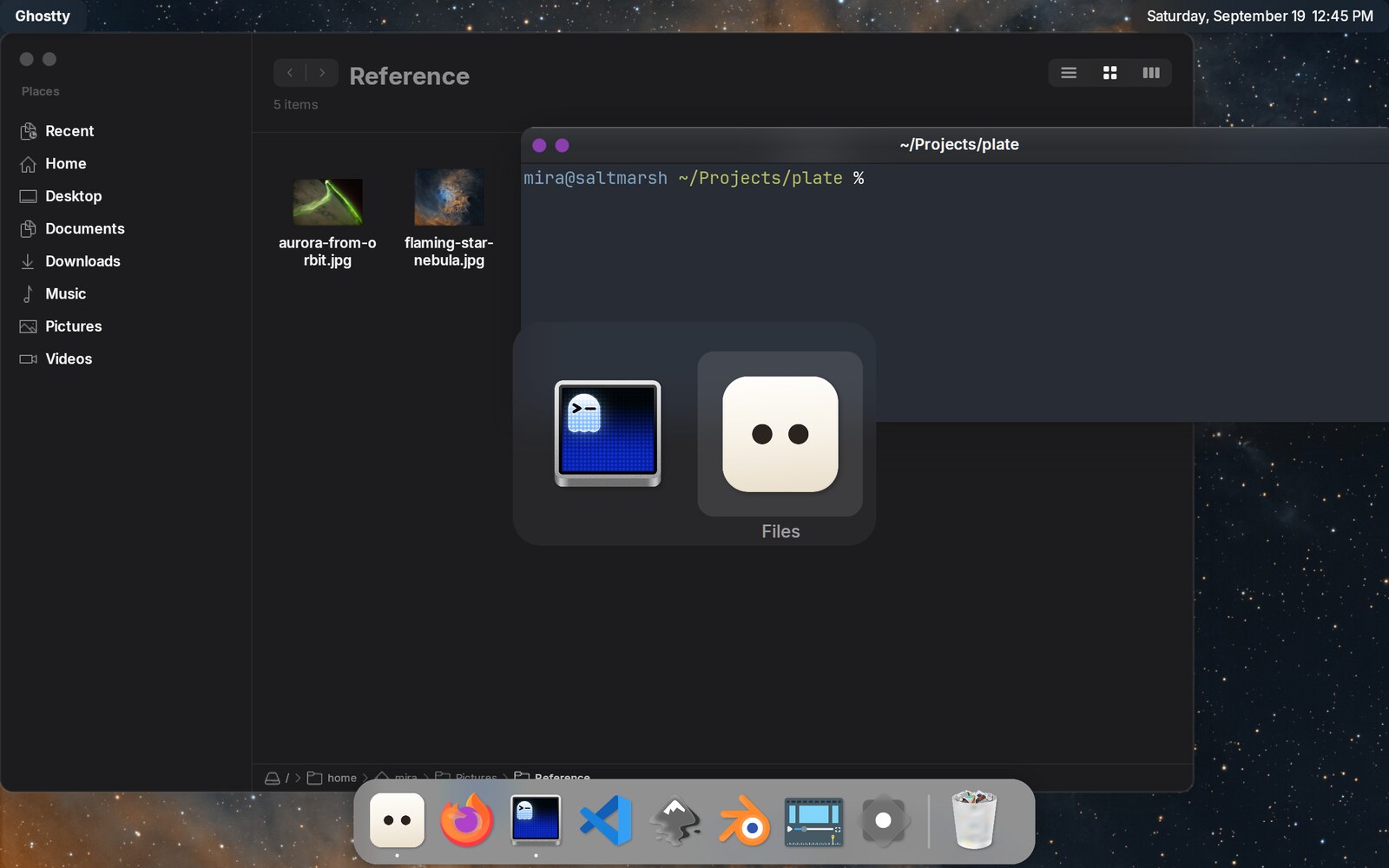
A horizontal panel of running applications with icons, names and a blurred backdrop.
Using it
| Keys | Effect |
|---|---|
Ctrl+Tab | Open the switcher / move to the next app |
Ctrl+Shift+Tab | Move to the previous app |
Ctrl+` (Ctrl+grave) | Cycle windows within the highlighted app |
Ctrl+Q | Quit the highlighted app |
Release Ctrl | Commit: focus the highlighted app |
The switcher stays up as long as you hold the modifier that opened it. Any
of Ctrl, Alt, Logo or Shift works as the hold key, depending on what you
bound the action to; release it and the switcher commits and disappears. It also
closes on its own if you quit the last app from it — there is nothing left to
switch to.
Applications are ordered most-recently-used first, so a single Ctrl+Tab press
and release flips between the last two apps.
Committing on an app focuses the window of that app you used last. If that
window is on another workspace, the screen scrolls there. Ctrl+` steps
through all of the app’s windows in turn, across workspaces and in workspace
order, so an app with a window on each of two workspaces alternates between
them.
Which monitor it appears on
By default the switcher appears on the monitor under the pointer. To pin it to the primary monitor instead:
[appswitcher]
follow_cursor = false
The panel is sized from its host monitor’s own resolution and scale, so it looks right on a screen of a different size. Once it is on screen it stays put. It will not hop to another monitor mid-cycle however far the pointer moves.
It lists windows from every monitor. Selecting one focuses it wherever it lives, which may not be the screen showing the switcher.
Rebinding
[keyboard_shortcuts]
"Alt+Tab"                 = "ApplicationSwitchNext"
"Alt+Shift+ISO_Left_Tab"  = "ApplicationSwitchPrev"
"Alt+grave"               = "ApplicationSwitchNextWindow"
"Alt+F4"                  = "ApplicationSwitchQuit"
Note ISO_Left_Tab for the shifted variant: Shift+Tab produces that keysym,
not Tab. See Keyboard Shortcuts.
The Dock as a switcher
The Dock does the same job with the pointer: click a running app’s icon to raise it, click again to cycle through that app’s windows.
Troubleshooting
Exposé previews are frozen or blank. This is a bug worth reporting. Grab
RUST_LOG=debug output and note whether the window was fullscreen just before.
The switcher opens on the wrong screen. It resolves the monitor from the
last confirmed pointer position. If you drive Otto entirely from the keyboard,
the pointer may be somewhere you forgot; set follow_cursor = false to pin it.
Ctrl+Q quit my app by accident. That is the shipped binding for
ApplicationSwitchQuit and only fires while the switcher is up — but it is easy
to hit. Rebind or remove it if it bites.