← Otto Developer Guideotto-kit library
See also: otto-kit
This page is a catalogue of the UI components in
components/otto-kit/src/components/, one section each, with a picture of
it. Every component draws onto a bare Skia &Canvas: none of them owns a
connection, an event loop or a surface. That is what lets the compositor
draw the same titlebars and menus as the apps do.
They come in the two shapes described under Components in otto-kit:
- Stateless
Renderablebuilders. A value is built withwith_*calls and paints itself withrender(canvas):Label,Icon,Button,Toolbar,Titlebar. - Retained state plus an immediate-mode renderer. The caller owns the
state (sometimes just a
boolor anf32, sometimes a struct such asTextInputState) and hands it to a draw function on every frame, feeding pointer and key events back into the state. Most of the form controls are free functions of this kind (toggle::draw,slider::draw,dropdown::field::draw) with a hit-test helper beside them.
The pictures are drawn offscreen at scale 2 in the light palette, on the window background, by an example with no compositor involved. To draw them again after a component changes how it looks:
cargo run -p otto-kit --example component_library -- docs/developer/images/otto-kit/
“Used by” lists the workspace crates that call a component outside tests and
examples, as found at their call sites. otto is the compositor.
Most entries end with a snippet: for a pictured component, the code that
draws its picture, trimmed. Snippets assume
use otto_kit::prelude::*, a canvas: &Canvas, the current theme: &Theme
and, where they take input, a pointer position x, y in the component’s
own coordinates.
Text and images
Label
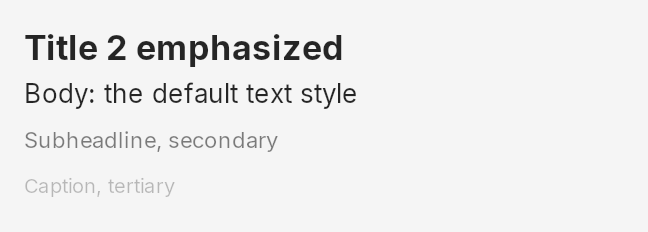
One line of text in a named text style and colour. It is the building block
nearly every other component sets its text with, so a label, a slider’s
readout and a menu row all share the same type scale from
typography::styles.
- Shape:
Renderablebuilder.Label::new(text).with_style(..).with_color(..), placed withat,centered_onorcentered_at. - Types:
Label(LabelBuilderis the same type),TextAlign. - Source:
label/ - Used by: otto (
TextAlignonly), otto-files, otto-media-kit, otto-peek, otto-preview, otto-settings. Inside otto-kit, most components draw their text with it.
Label::new("Body: the default text style")
    .with_style(styles::BODY)
    .with_color(theme.text_primary)
    .centered_on(0.0, 12.0)
    .render(canvas);
Icon
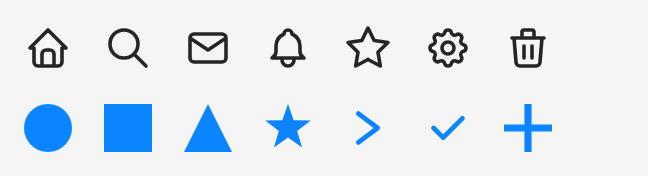
Two icon builders. Icon draws one of the stroked or filled SVG icons kept in
components/otto-kit/resources/icons/ by name, at any size and colour.
GeometricIcon draws a handful of shapes (circle, star, check, chevrons…)
from code. Interface glyphs from the Solar set and theme icons are not this
component: they come from icons::solar_icon and the icons lookups.
- Shape:
Renderablebuilder.Icon::new("search").with_size(24.0).with_color(..). - Types:
Icon,GeometricIcon,IconShape,IconStyle,list_icons(). - Source:
icon/ - Used by: otto-files. Inside otto-kit,
Buttonand the menu item renderer draw with it.
use otto_kit::components::icon::{GeometricIcon, Icon, IconShape};

Icon::new("search")
    .at(0.0, 0.0)
    .with_size(24.0)
    .with_color(theme.text_primary)
    .render(canvas);
GeometricIcon::new(IconShape::Star)
    .at(0.0, 40.0)
    .with_size(24.0)
    .with_color(theme.accent)
    .render(canvas);
Avatar
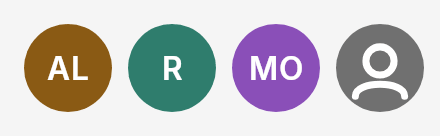
A person’s picture in a circle, or, without one, their initials on a ground colour picked from their name, so the same name always gets the same colour. A name with no letters gets a neutral silhouette. Use it wherever an account is shown.
- Shape: draw function.
avatar::draw(canvas, rect, picture, name). - Types:
draw,initials,ground_color. - Source:
avatar/ - Used by: otto-auth-ui, otto-settings.
use otto_kit::components::avatar;

let rect = Rect::from_xywh(0.0, 0.0, 44.0, 44.0);
// No picture: the initials, on a ground colour picked from the name.
avatar::draw(canvas, rect, None, "Ana López");
Containers
Frame and Stack
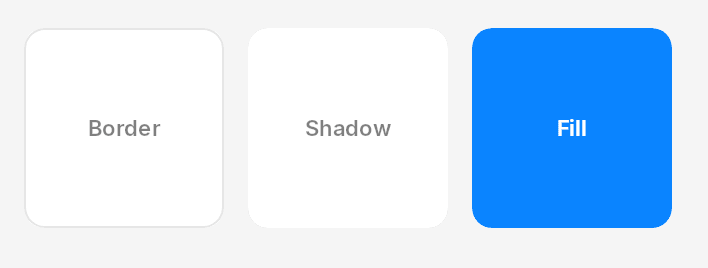
Frame is a rectangle with a background, corner radius, border, shadow and
padding, and an optional draw function for its content. Stack lays children
out in a row or a column with a gap and an alignment. Both implement the
Container trait, so stacks nest.
- Shape: builder, retained.
FrameBuilder::new(w, h).with_*(..).build(), thenContainer::render(&mut self, canvas). - Types:
Frame,FrameBuilder,Stack,StackDirection,StackAlignment,Container,EdgeInsets,CornerRadius,Border,BoxShadow,LayoutConstraints. - Source:
container/ - Used by: no crate yet;
examples/containers.rsshows it.
let mut stack = Stack::new(StackDirection::Horizontal).with_gap(12.0);
stack.add(Box::new(
    FrameBuilder::new(100.0, 100.0)
        .with_background(Color::WHITE)
        .with_corner_radius(10.0)
        .with_border(theme.hairline, 1.0)
        .with_draw_fn(|canvas: &Canvas, bounds: Rect| { /* the content */ })
        .build(),
));
stack.add(Box::new(
    FrameBuilder::new(100.0, 100.0)
        .with_background(Color::WHITE)
        .with_shadow(BoxShadow::new(Color::from_argb(40, 0, 0, 0), 0.0, 2.0, 6.0))
        .build(),
));
stack.render(canvas);
Toolbar

A horizontal bar with a leading and a trailing ToolbarGroup, each a row of
Renderable items with optional separators and fixed spaces between them.
The trailing group is placed a fixed 200 points in from the trailing edge
rather than measured, which is why it sits mid-bar in the picture.
- Shape:
Renderablebuilder.Toolbar::new().with_width(..).with_leading(group).with_trailing(group). - Types:
Toolbar,ToolbarGroup. - Source:
toolbar/ - Used by: otto-preview.
use otto_kit::components::button::Button;
use otto_kit::components::toolbar::{Toolbar, ToolbarGroup};

let leading = ToolbarGroup::new()
    .add(Button::icon("chevron-left").ghost())
    .add_space(12.0)
    .add(Label::new("Documents").with_style(styles::TITLE_3_EMPHASIZED))
    .build();
let trailing = ToolbarGroup::new().add(Button::icon("search").ghost()).build();
Toolbar::new()
    .with_width(420.0)
    .with_background(theme.material_titlebar)
    .with_leading(leading)
    .with_trailing(trailing)
    .render(canvas);
Scroll
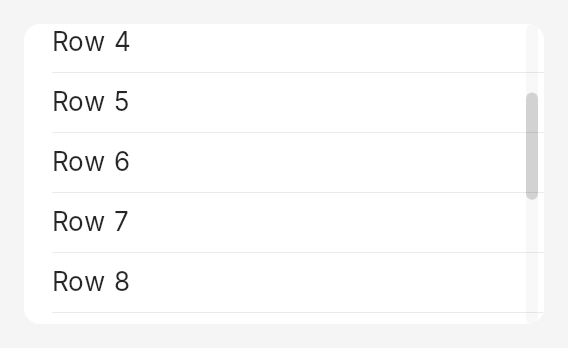
Everything that scrolls. ScrollState is one axis’s viewport, content length,
offset and overlay scrollbar; ScrollRenderer::draw clips to the viewport,
draws the visible part of the content through a closure and paints the
scrollbar. ScrollView adds the physics (wheel, drag, fling, overscroll), and
ScrollPane scrolls by moving subsurfaces instead of repainting, together
with the row, grid and justified layouts that go with it. See
Scroll Panes.
- Shape: state plus renderer.
ScrollRenderer::draw(canvas, &state, theme, |canvas, visible| ..). - Types:
ScrollState,ScrollView,ScrollRenderer,ScrollPane,ScrollGroup,ScrollContent,ScrollSurfaces,RowLayout,GridLayout,JustifiedLayout,Axis. - Source:
scroll/ - Used by: otto-agents-kit, otto-canvas, otto-emoji, otto-files, otto-launcher, otto-peek, otto-preview, otto-settings, otto-stash. Inside otto-kit, the item list’s rows use
RowLayout.
let mut state = ScrollState::new(Rect::from_wh(260.0, 150.0));
state.set_content_length(30.0 * 14.0); // 14 rows of 30 points
state.set_offset(96.0);
ScrollRenderer::draw(canvas, &state, theme, |canvas, visible| {
    // Draw the rows that meet `visible`, in content coordinates.
});

// Input: move by a wheel delta; `true` means the offset changed.
if state.scroll_by(30.0) { /* redraw */ }
// `ScrollView` adds the physics: `on_wheel`, `on_pointer_down`, `tick`.
Controls
Button
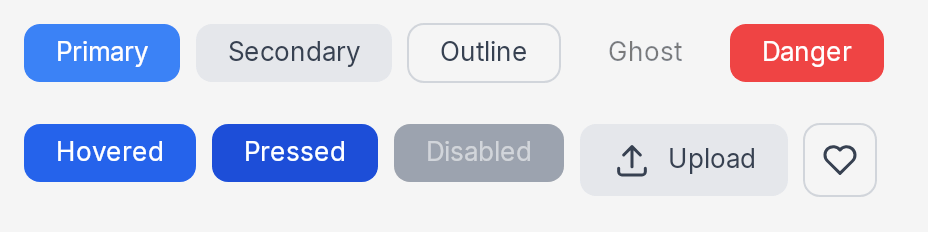
A general button with a label, an icon or both, in five variants (primary, secondary, outline, ghost, danger) and four states. Its colours are fixed in the component rather than taken from the theme, so it does not follow the accent or dark mode. For a dialog’s buttons use the push button below.
- Shape:
Renderablebuilder.Button::new("Save").secondary().with_state(..), orButton::icon("search").ghost(). - Types:
Button,ButtonVariant,ButtonState,IconPosition. - Source:
button/ - Used by: no crate; the examples and toolbars in
examples/use it.
use otto_kit::components::button::{Button, ButtonState};

let save = Button::new("Save").primary();
let width = save.intrinsic_size().map_or(80.0, |(w, _)| w);
save.at(0.0, 0.0).render(canvas);
Button::new("Hovered")
    .with_state(ButtonState::Hovered)
    .at(width + 8.0, 0.0)
    .render(canvas);
Button::new("Upload").with_icon("upload").secondary().at(0.0, 50.0).render(canvas);
Button::icon("heart").outline().at(110.0, 50.0).render(canvas);
Push button
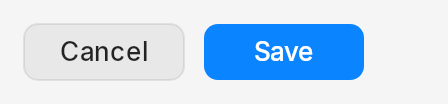
The button Otto’s own dialogs and Settings rows use: a quiet fill with a hairline edge, or the accent for the one button Return presses. It darkens while held and acts on release, and it has no hover look. The caller says whether it is held.
- Shape: draw function.
push_button::draw(canvas, rect, label, PushButton::new(Role::Default), theme);push_button::width(label)sizes it. - Types:
PushButton,Role,draw,width,HEIGHT,MIN_WIDTH. - Source:
push_button.rs - Used by: otto-preview.
use otto_kit::components::push_button::{self, PushButton, Role};

let rect = Rect::from_xywh(0.0, 0.0, push_button::width("Save"), push_button::HEIGHT);
let held = false; // the caller's: pressed inside `rect` and not yet released
let button = PushButton::new(Role::Default).pressed(held);
push_button::draw(canvas, rect, "Save", button, theme);
Toggle
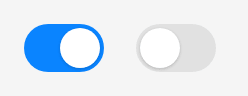
An on/off switch. The caller owns the value and, for an animated flip, the
knob’s position along the track, which Flip interpolates over
FLIP_DURATION.
- Shape: draw function.
toggle::draw(canvas, rect, toggle::knob_fraction_for(on), interaction, theme), withtoggle::hit_test. - Types:
draw,hit_test,knob_fraction_for,Flip,ToggleInteraction,WIDTH,HEIGHT. - Source:
toggle/ - Used by: otto-settings.
let mut on = true;
let rect = Rect::from_xywh(0.0, 0.0, toggle::WIDTH, toggle::HEIGHT);
let knob = toggle::knob_fraction_for(on);
toggle::draw(canvas, rect, knob, ToggleInteraction::Normal, theme);

// Input: a press inside flips it; `Flip` animates the knob across.
if toggle::hit_test(rect, x, y) {
    on = !on;
    let flip = toggle::Flip::start(knob, on); // draw with flip.fraction() while it runs
}
Slider

A continuous value on a track, with an optional readout string the caller
formats. The value stays with the caller; SliderDrag is the small state
that turns a press and drag into new values.
- Shape: draw function plus a drag state.
slider::draw(canvas, rect, value, min, max, readout, interaction, theme). - Types:
draw,value_at,hit_test_knob,hit_test_track,SliderDrag,SliderResponse,SliderInteraction. - Source:
slider/ - Used by: otto-files.
let rect = Rect::from_xywh(0.0, 0.0, 180.0, 24.0);
let mut value = 48.0;
let readout = format!("{value:.0}%");
let normal = SliderInteraction::Normal;
slider::draw(canvas, rect, value, 0.0, 100.0, Some(&readout), normal, theme);

// Input: `SliderDrag` turns a press and a drag into values; the value stays yours.
let mut drag = SliderDrag::default();
if let SliderResponse::Changed(v) = drag.on_pointer_down(rect, 0.0, 100.0, None, value, x, y) {
    value = v;
}
// Then drag.on_pointer_drag(rect, 0.0, 100.0, None, value, x) and drag.on_pointer_up().
Segmented control

A row of mutually exclusive choices on one track, the chosen one raised on a pill. Segments are words or Solar glyphs. Use it for a small, fixed set of modes, such as a view switcher.
- Shape: draw function.
segmented::draw(canvas, rect, &segments, selected, interaction, theme), withsegment_atfor hits. - Types:
Segment,SegmentedInteraction,draw,segment_at,segment_rect,HEIGHT. - Source:
segmented/ - Used by: otto-files.
use otto_kit::components::segmented::{self, Segment, SegmentedInteraction};

let segments = [Segment::Text("Light"), Segment::Text("Dark"), Segment::Text("Auto")];
// A glyph segment: Segment::Glyph { name: "otto-view-grid-symbolic", fallback: None }
let rect = Rect::from_xywh(0.0, 0.0, 180.0, segmented::HEIGHT);
let mut selected = Some(1);
let normal = SegmentedInteraction::Normal;
segmented::draw(canvas, rect, &segments, selected, normal, theme);

// Input: the segment a press lands on.
if let Some(index) = segmented::segment_at(rect, segments.len(), x, y) {
    selected = Some(index);
}
Text input
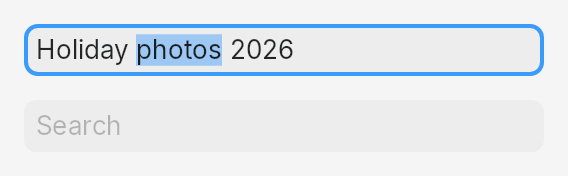
A single-line editable field: value, caret, selection, placeholder, password
masking and dictation marks. It is the model for the retained-state shape.
The host translates its key and pointer events into on_key,
on_pointer_down, on_pointer_drag and on_pointer_up, each answering what
changed.
- Shape: state plus renderer.
TextInputbundlesTextInputStateandTextInputStyleand draws withrender_at(canvas, w, h)or as aRenderable. - Types:
TextInput,TextInputState,TextInputRenderer,TextInputStyle,TextInputKey,KeyMods,TextInputResponse,key_for. - Source:
text_input/ - Used by: otto, otto-agents-kit, otto-canvas, otto-emoji, otto-files, otto-launcher, otto-preview, otto-settings. Inside otto-kit, attachments and the item list take their text styles from it.
let style = TextInputStyle::with_theme(theme.clone());
let mut input = TextInput::new("Holiday photos 2026", style).with_size(260.0, 26.0);
input.state.set_focused(true);
input.state.select_range(8..14);
input.render(canvas);

// Input: x is field-local; then the click count and whether Shift is held.
input.on_pointer_down(x, 1, false);
match input.on_key(TextInputKey::Char('a'), KeyMods::default()) {
    TextInputResponse::Commit => { /* Enter: save input.value() */ }
    TextInputResponse::Clipboard(text) => { /* copy or cut: put `text` on the clipboard */ }
    _ => { /* Changed or Moved: redraw; Ignored: not for the field */ }
}
Selectable text
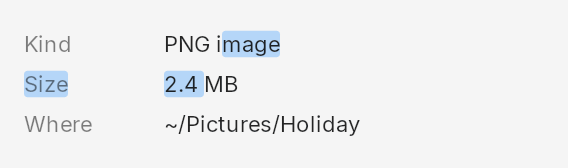
Read-only text that can be selected and copied. A panel lays its facts out as
TextRuns and hands its presses to one TextSelection, which counts double
and triple clicks itself, lets a drag run from one run to the next, and
answers what to copy.
- Shape: state plus renderer.
selection.draw_highlight(canvas, &runs, colour), thenrun.draw(canvas)for each run. - Types:
TextRun,TextSelection,TextPos. - Source:
selectable_text.rs - Used by: otto-files.
use otto_kit::components::selectable_text::{TextRun, TextSelection};
use std::time::Instant;

let runs = vec![
    TextRun::at("Kind", styles::SUBHEADLINE, theme.text_secondary, 0.0, 10.0),
    TextRun::at("PNG image", styles::SUBHEADLINE, theme.text_primary, 70.0, 10.0),
];
let mut selection = TextSelection::new();
selection.draw_highlight(canvas, &runs, theme.accent.with_a(70));
for run in &runs {
    run.draw(canvas);
}

// Input: press, drag and release, then copy what is selected.
selection.press(&runs, x, y, Instant::now());
selection.drag(&runs, x, y);
selection.release();
let copied: Option<String> = selection.selected_text(&runs);
Dropdown
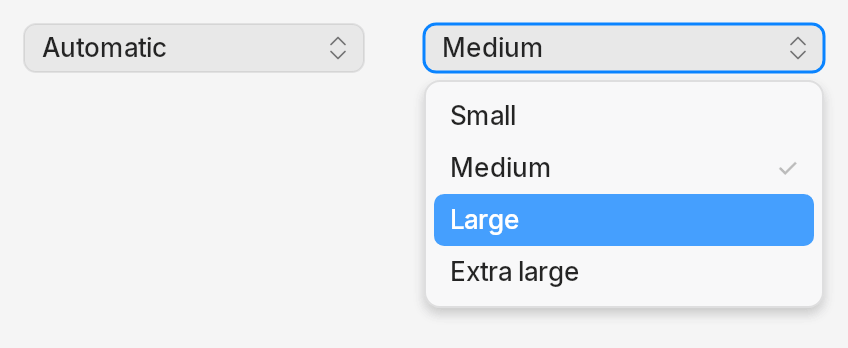
A pop-up button. The field is a plain draw function that the compositor
could draw as well. DropdownMenu is the client half: it opens a context
menu popup against the window’s surface, marks the chosen value and routes
the choice back to the field that opened it.
- Shape: draw function for the field;
DropdownMenuowns the popup. - Types:
field::draw,field::draw_with_icon,field::hit_test,DropdownInteraction,Placement,DropdownMenu. - Source:
dropdown/ - Used by: otto-files, otto-preview, otto-settings.
use otto_kit::components::context_menu::ContextMenuRenderer;
use otto_kit::components::dropdown::field;

let rect = Rect::from_xywh(0.0, 0.0, 200.0, field::HEIGHT);
field::draw(canvas, rect, "Medium", DropdownInteraction::Open, theme);
// The menu it opens: rows at the field's text size, the chosen one ticked.
let items = vec![
    MenuItem::action("Small"),
    MenuItem::action("Medium").with_shortcut("\u{2713}"),
    MenuItem::action("Large"),
];
let style = ContextMenuStyle::default()
    .with_theme(theme.clone())
    .with_item_metrics(field::LABEL_STYLE.size, 26.0)
    .with_min_width(200.0);
let (w, h) = ContextMenuRenderer::measure_items(&items, &style);
canvas.translate((0.0, field::HEIGHT + 4.0));
ContextMenuRenderer::render_depth(canvas, &items, None, &style, w, h, 0.0);

// Input: a press on the field opens the menu (`DropdownMenu` in an app).
let open = field::hit_test(rect, x, y);
Colour picker
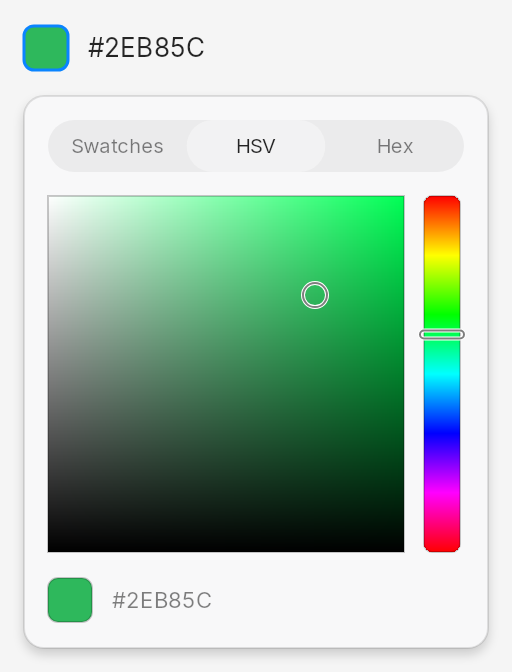
A colour well that opens a panel with three modes: preset swatches, an HSV
square with a hue strip, and a hex field. The well and the panel are draw
functions; ColorPickerPopup owns the popup surface the panel opens in.
- Shape: draw functions plus a popup owner.
well::draw(canvas, rect, colour, interaction, theme),panel::draw(..). - Types:
well::draw,well::measure,WellInteraction,panel::draw,panel::panel_size,Mode,Swatch,HexField,ColorPickerPopup,hsv. - Source:
color_picker/ - Used by: otto-settings.
use otto_kit::components::color_picker::{panel, well};

let color = Color::from_rgb(0x2E, 0xB8, 0x5C);
let well_rect = Rect::from_xywh(0.0, 0.0, well::measure(color), well::HEIGHT);
well::draw(canvas, well_rect, color, WellInteraction::Open, theme);
let swatches = vec![panel::Swatch::new("Green", color)];
let (w, h) = panel::panel_size(swatches.len());
let rect = Rect::from_xywh(0.0, well::HEIGHT + 12.0, w, h);
let (mode, field) = (panel::Mode::Hsv, Some(HexField::Hex));
panel::draw(canvas, rect, mode, color, &swatches, Some(0), field, theme);

// Input: the well opens the panel; the panel says what a press hit.
let open = well::hit_test(well_rect, x, y);
let new_mode = panel::mode_at(rect, x, y);
let swatch = panel::swatch_at(rect, swatches.len(), x, y);
Collections
List
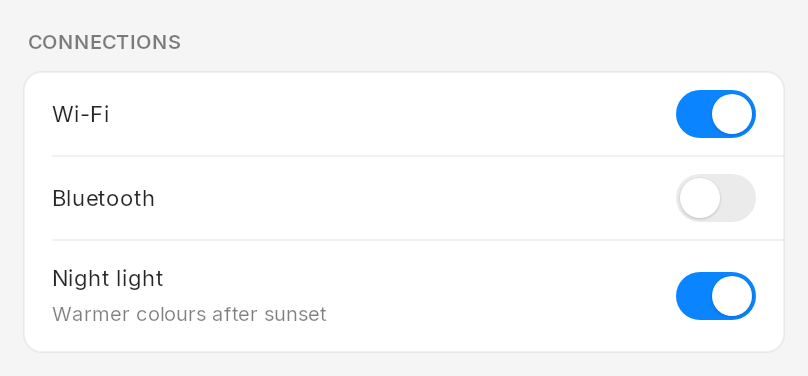
The grouped list card a settings pane is built from: an optional section title, then rows with a label and an optional detail line, divided by hairlines. Each row’s trailing slot is drawn by the caller, so it can hold a toggle, a slider, a value or nothing.
- Shape: draw function over a layout.
ListLayout::compute(&rows, has_title, x, y, width), thenlist::draw(canvas, &layout, &rows, title, theme, background, |canvas, index, rect| ..). - Types:
ListLayout,ListRow,draw,trailing_rect,default_card_background,ROW_HEIGHT. - Source:
list/ - Used by: no crate yet;
examples/list_gallery.rsshows it.
use otto_kit::components::list;

let rows = vec![
    ListRow::new("Wi-Fi"),
    ListRow::new("Night light").with_detail("Warmer colours after sunset"),
];
let layout = ListLayout::compute(&rows, true, 0.0, 0.0, 380.0);
let card = list::default_card_background(false);
list::draw(canvas, &layout, &rows, Some("CONNECTIONS"), theme, card, |canvas, index, rect| {
    let slot = list::trailing_rect(rect, toggle::WIDTH);
    // Draw row `index`'s toggle, value or nothing into `slot`.
});

// Input: the row a press landed on.
let row = layout.row_at(x, y);
Source list
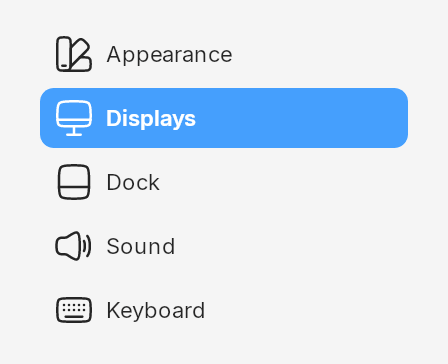
A sidebar of places or sections with an icon and a label each, the selected one on the accent. The caller draws the icons, in the tint the list hands it.
- Shape: draw function over a layout.
SourceListLayout::compute(count, x, y, width), thensource_list::draw(canvas, &layout, &items, selected, theme, |canvas, index, rect, tint| ..). - Types:
SourceListItem,SourceListLayout,draw,icon_rect,item_tint. - Source:
source_list/ - Used by: no crate yet;
examples/sidebar_window.rsandexamples/list_gallery.rsshow it.
use otto_kit::components::source_list;

let items = vec![
    SourceListItem::new("Appearance"),
    SourceListItem::new("Displays"),
    SourceListItem::new("Dock"),
];
let layout = SourceListLayout::compute(items.len(), 0.0, 0.0, 200.0);
source_list::draw(canvas, &layout, &items, Some(1), theme, |canvas, index, rect, tint| {
    // Draw item `index`'s icon into `rect`, in `tint`.
});

// Input: the item a press landed on.
let clicked = layout.item_at(x, y);
Selection list
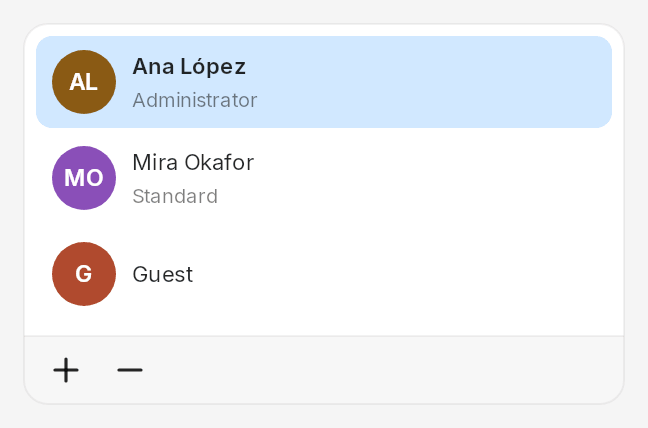
A card of items with a title and an optional subtitle, one of them selected, and a footer with add and remove buttons. The caller draws each item’s leading picture, an avatar in the Users pane.
- Shape: draw function over a layout.
SelectionListLayout::compute(count, bounds),selection_list::draw(..), andlayout.hit(x, y)answering an item, add or remove. - Types:
SelectionListItem,SelectionListLayout,SelectionListState,SelectionListHit,draw,leading_rect. - Source:
selection_list/ - Used by: otto-settings.
use otto_kit::components::selection_list::{self, SelectionListHit, SelectionListItem};
use otto_kit::components::selection_list::{SelectionListLayout, SelectionListState};
use otto_kit::components::{avatar, list};

let items = vec![SelectionListItem::new("Ana López").with_subtitle("Administrator")];
let bounds = Rect::from_wh(300.0, SelectionListLayout::height_for(items.len()));
let layout = SelectionListLayout::compute(items.len(), bounds);
let state = SelectionListState { selected: Some(0), can_add: true, can_remove: true, pressed: None };
let card = list::default_card_background(false);
selection_list::draw(canvas, &layout, &items, &state, theme, card, |canvas, index, rect| {
    avatar::draw(canvas, rect, None, &items[index].title);
});

// Input: an item, or the footer's add or remove button.
if let Some(SelectionListHit::Item(index)) = layout.hit(x, y) { /* select it */ }
Item list
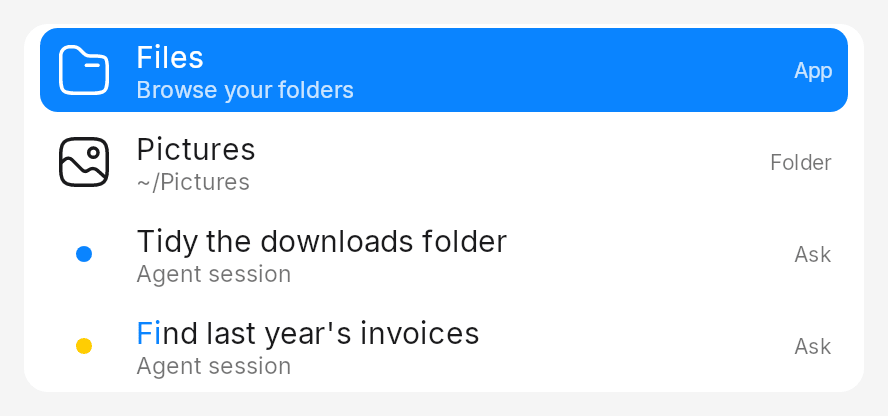
The rows of a searchable list, as the launcher draws them: an icon, an
activity dot or a checkbox, a title with an optional second line, and a badge
naming the source. Typed characters are marked in the titles, and rank
orders items against a query.
- Shape: data plus draw function.
rows::paint_item_rows_styled(canvas, band, &items, labels, width, dark, &icons, &RowStyle { .. }). - Types:
item::Item,item::Activity,item::rank,rows::paint_item_rows,rows::RowStyle,rows::RowIcons,rows::field_style. - Source:
item_list/ - Used by: otto-settings (its sidebar search), and through otto-agents-kit’s re-export, otto-launcher and otto-canvas.
use otto_kit::components::item_list::item::{self, Item, Origin};
use otto_kit::components::item_list::rows::{self, RowIcons, RowStyle};

let items = vec![Item {
    title: "Files".to_string(),
    subtitle: Some("Browse your folders".to_string()),
    icon: None, activity: None, checked: None, search_terms: Vec::new(), pill: None,
    origin: Origin { source: 0, index: 0 }, // `source` picks the badge label
}];
let query = "fi";
let ranked: Vec<&Item> = item::rank(&items, query).iter().map(|m| &items[m.index]).collect();
let accent = Some(theme.accent);
let white = Some(Color::WHITE);
let style = RowStyle {
    selected: Some(0), selection: accent, on_selection: white, mark: accent, query,
    ..RowStyle::default()
};
let band = Rect::from_wh(420.0, rows::ROW_H * ranked.len() as f32);
let icons = RowIcons::default();
rows::paint_item_rows_styled(canvas, band, &ranked, &["App"], 420.0, false, &icons, &style);
Menus
Menu bar

A strip of menu titles, each a label, an icon or both, with hover and active highlights. The renderer returns each item’s bounds for hit testing.
- Shape: state plus renderer.
MenuBarRenderer::render(canvas, &state, &style, width). - Types:
MenuBarState,MenuBarItem,MenuBarIcon,MenuBarStyle,MenuBarRenderer. - Source:
menu_bar/ - Used by: otto-bar.
use otto_kit::components::menu_bar::{MenuBarRenderer, MenuBarState, MenuBarStyle};
use otto_kit::skia::font_style::Weight;

let mut state = MenuBarState::new();
for label in ["Files", "File", "Edit", "View", "Go", "Window"] {
    state.add_item(label);
}
state.set_active(Some(2));
let style = MenuBarStyle { first_item_font_weight: Some(Weight::BOLD), ..MenuBarStyle::default() };
let result = MenuBarRenderer::render(canvas, &state, &style, 420.0);

// Input: the bounds the render returned say which title is under the pointer.
let hit = result.item_bounds.iter().find(|b| (b.rect.left..b.rect.right).contains(&x));
state.set_hover(hit.map(|b| b.index));
Menu item
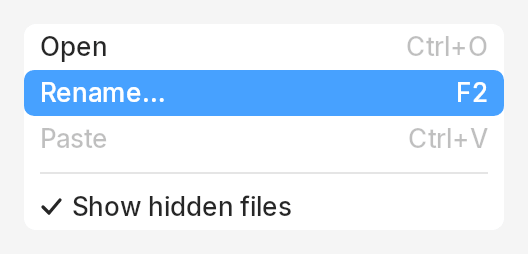
One row of a menu: an action with an optional shortcut, icon or check, a submenu, or a separator. It is the data every menu is made of; the context menu and the dropdown build their rows from it.
- Shape: data plus renderer.
MenuItem::action(label).with_shortcut(..), drawn byMenuItemRenderer::renderor aMenuItemGroup. - Types:
MenuItem,MenuItemKind,MenuItemIcon,VisualState(MenuItemState),MenuItemStyle,MenuItemRenderer,MenuItemGroup. - Source:
menu_item/ - Used by: otto, otto-bar, otto-files. Inside otto-kit, the context menu and the dropdown.
use otto_kit::components::menu_item::VisualState;

let group = MenuItemGroup::new().with_width(240.0).items(vec![
    MenuItem::action("Open").with_shortcut("Ctrl+O"),
    MenuItem::action("Rename…").with_shortcut("F2").with_visual_state(VisualState::Hovered),
    MenuItem::action("Paste").with_shortcut("Ctrl+V").disabled(),
    MenuItem::separator(),
    MenuItem::action("Show hidden files").with_checked(true).with_check_gutter(),
]);
group.render(canvas);
Context menu
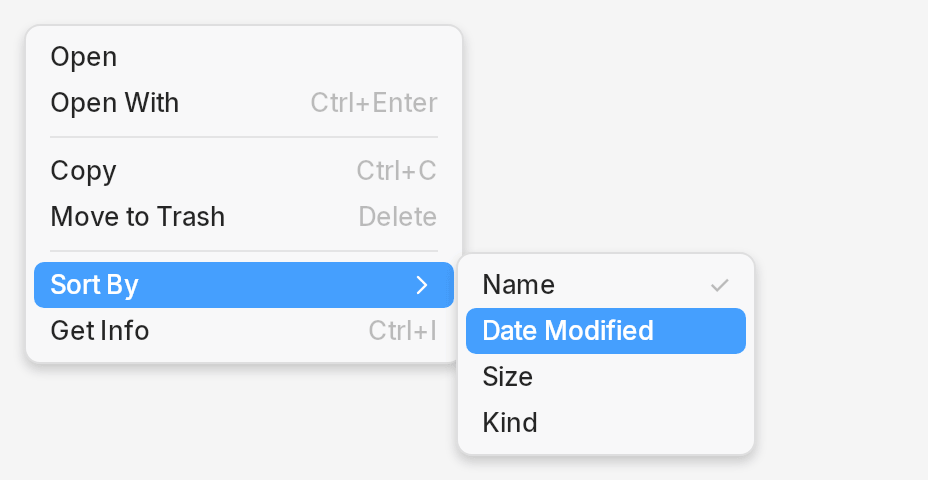
A popup menu with separators, shortcuts, submenus to any depth, keyboard
navigation and a scrolling cap for long lists. ContextMenuRenderer is the
drawing half and is what the compositor draws the dock’s menus with;
ContextMenu is the client half that puts it on xdg popups and owns the
pointer while it is open.
- Shape: state plus renderer.
ContextMenuRenderer::render_depth(canvas, &items, selected, &style, w, h, scroll);ContextMenufor a live popup. - Types:
ContextMenu,ContextMenuState,ContextMenuStyle,ContextMenuRenderer,MenuRefresh. - Source:
context_menu/ - Used by: otto, otto-bar, otto-files. Inside otto-kit, the dropdown.
use otto_kit::components::context_menu::ContextMenuRenderer;

let items = vec![
    MenuItem::action("Open"),
    MenuItem::action("Copy").with_shortcut("Ctrl+C"),
    MenuItem::separator(),
    MenuItem::submenu("Sort By", vec![MenuItem::action("Name"), MenuItem::action("Size")]),
];
let style = ContextMenuStyle::default().with_theme(theme.clone());
let (w, h) = ContextMenuRenderer::measure_items(&items, &style);
let mut selected = Some(3);
ContextMenuRenderer::render_depth(canvas, &items, selected, &style, w, h, 0.0);
// An open submenu is items[3].submenu_items(), drawn the same way beside it.

// Input: the row under the pointer; None over a separator or outside.
selected = ContextMenuRenderer::hit_test_items(&items, &style, x, y, 0.0);
Window chrome
Titlebar
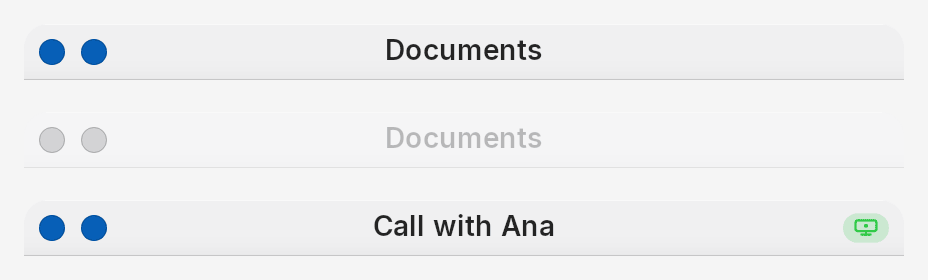
A window’s title strip and its controls. WindowDecoration is the whole bar
for a variant (a floating window, or a tile’s normal, minimal or hidden bar),
active or not, light or dark, with its hit testing; the compositor draws
server-side decorations with it and apps draw their own. Titlebar is the
lower-level builder with leading, title and control groups. WindowControls
are the round window buttons, with the zoom dot shown only when the desktop
is configured for it, and SharingIndicator is the badge a window wears
while it is being shared.
- Shape: builders.
WindowDecoration::new(title, width).with_active(..).draw(canvas);Titlebar,WindowControlsandSharingIndicatorareRenderable.WindowControlsStatetracks hover and press. - Types:
WindowDecoration,DecorationVariant,Titlebar,TitlebarGroup,TitlebarMaterial,WindowControls,WindowControl,WindowControlsState,SharingIndicator. - Source:
titlebar/ - Used by: otto, otto-files, otto-preview, otto-settings. Inside otto-kit,
Window.
use otto_kit::components::titlebar::{WindowControl, WindowDecoration};

// .with_active(false) greys it out; .with_sharing(true) adds the badge.
let bar = WindowDecoration::new("Documents", 440.0).with_corner_radius(12.0);
bar.draw(canvas);

// Input: a press on a window button, or on the bar to move the window.
match bar.control_at(x, y) {
    Some(WindowControl::Close) => { /* close */ }
    Some(_) => { /* minimise or zoom */ }
    None if bar.hits_titlebar(x, y) => { /* start an interactive move */ }
    None => {}
}
Window
No picture: a window is a surface, not a drawing. Window wraps a toplevel
(or a layer-shell surface) with a draw callback, the lay-rs layer behind it,
pointer events, frame pacing, rounded corners and frost. window::resize
answers which edge a point is on and which cursor it shows, for windows that
draw their own decoration.
- Shape: client object, not a canvas component.
- Types:
Window,resize,ApplicationWindow,WindowLayout. - Source:
window/ - Used by: otto-files, otto-preview, otto-settings.
ApplicationWindowis not used outside its module.
struct Notes {
    window: Option<Window>,
}

impl App for Notes {
    fn on_app_ready(&mut self, _ctx: &AppContext) -> Result<(), Box<dyn std::error::Error>> {
        let mut window = Window::new("Notes", 800, 600)?;
        window.set_background(Color::WHITE);
        window.on_draw(|canvas| Label::new("Hello").with_style(styles::BODY).render(canvas));
        self.window = Some(window);
        Ok(())
    }
}

fn main() -> Result<(), Box<dyn std::error::Error>> {
    AppRunner::new(Notes { window: None }).run()?;
    Ok(())
}
Layer and layers
No picture: neither draws anything of its own. Layer is a rectangle with a
draw closure and an optional otto_surface_style_v1 augmentation, and
LayerSurface puts one on a Wayland subsurface. LayerFrame and LayerStack
in layers/ wrap lay-rs layers in the scene graph as a frame and a
row-or-column stack; Renderable::to_layer builds a LayerFrame.
- Shape: client objects.
- Types:
Layer,LayerSurface(layer/);LayerFrame,LayerStack,StackDirection,StackAlignment(layers/). - Source:
layer/,layers/ - Used by: no crate. The
Layerotto-files uses issurfaces::layer_shell::Layer, a different type.
Ask and stash
Attachments
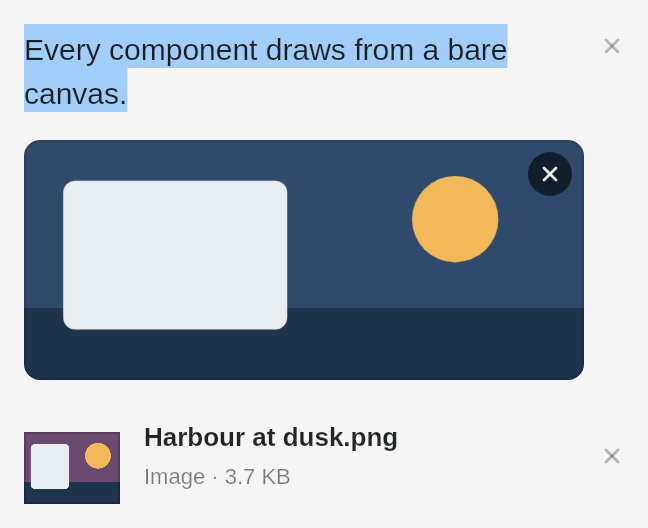
A list of things handed to Ask: selected text drawn as itself, a screen
region as its picture, a picture file as its thumbnail under its name, and
any other file as its icon, name, kind and size. The same list is the
otto-stash card, the files attached to a request in Ask, and the files that
went with one in its log. It never makes thumbnails itself: the app asks
thumbnails_wanted and hands each one in.
- Shape: state plus renderer.
AttachmentList::layout(&items, Options { .. }, theme), thenpaint(canvas, &layout, theme, hovered); the layout answersitem_atandremove_at. - Types:
Attachment,AttachmentList,Layout,Options,stash_dir. - Source:
attachments.rs - Used by: otto-agents-kit, otto-launcher, otto-stash.
use otto_kit::components::attachments::{Attachment, AttachmentList, Options};
use otto_kit::skia::{Data, Image};

let items = vec![Attachment::Text("Every component draws from a bare canvas.".to_string())];
let refs: Vec<(&Attachment, bool)> = items.iter().map(|item| (item, false)).collect();
let options = Options { width: 300.0, newest_first: false, removable: true };
let mut list = AttachmentList::default();
list.layout(&refs, options, theme);
for path in list.thumbnails_wanted() {
    let bytes = std::fs::read(&path).ok();
    list.set_thumbnail(&path, bytes.and_then(|b| Image::from_encoded(Data::new_copy(&b))));
}
let layout = list.layout(&refs, options, theme);
list.paint(canvas, &layout, theme, None);

// Input: a remove button, or an item.
if let Some(index) = layout.remove_at(x, y) { /* drop items[index] */ }
Stashed
No picture: it is a model. Stashed mirrors what otto-stash holds for an
app that shows it, as Ask does, on a thread of its own that reports through a
file descriptor the app polls. The app asks otto-stash for every change
(strike, remove, sent), so the card and the app never disagree, and draws the
items with the attachments list.
- Shape: client object.
- Types:
Stashed,Items. - Source:
stashed.rs - Used by: otto-launcher, otto-stash.
use otto_kit::components::attachments::Attachment;
use otto_kit::components::stashed::Stashed;

let mut stashed = Stashed::follow(true, false); // hold the card; don't add the selection
let fd = stashed.poll_fd(); // add to the app's poll loop, and when it is readable:
if stashed.pump() {
    let items: Vec<(Attachment, bool)> = stashed.items().iter()
        .map(|(path, struck)| (Attachment::for_file(path), *struck))
        .collect();
    // Lay them out with an `AttachmentList`.
}
stashed.toggle(0); // strike the first item out, or bring it back