← Otto User GuideDesktop Tour
A guided walk through everything Otto puts on screen, and what each piece is for.
The screen at a glance
The top bar runs along the top edge, with the dynamic island in the middle of it. Your windows sit on the workspace below. The dock floats over the bottom edge, or whichever edge you moved it to.
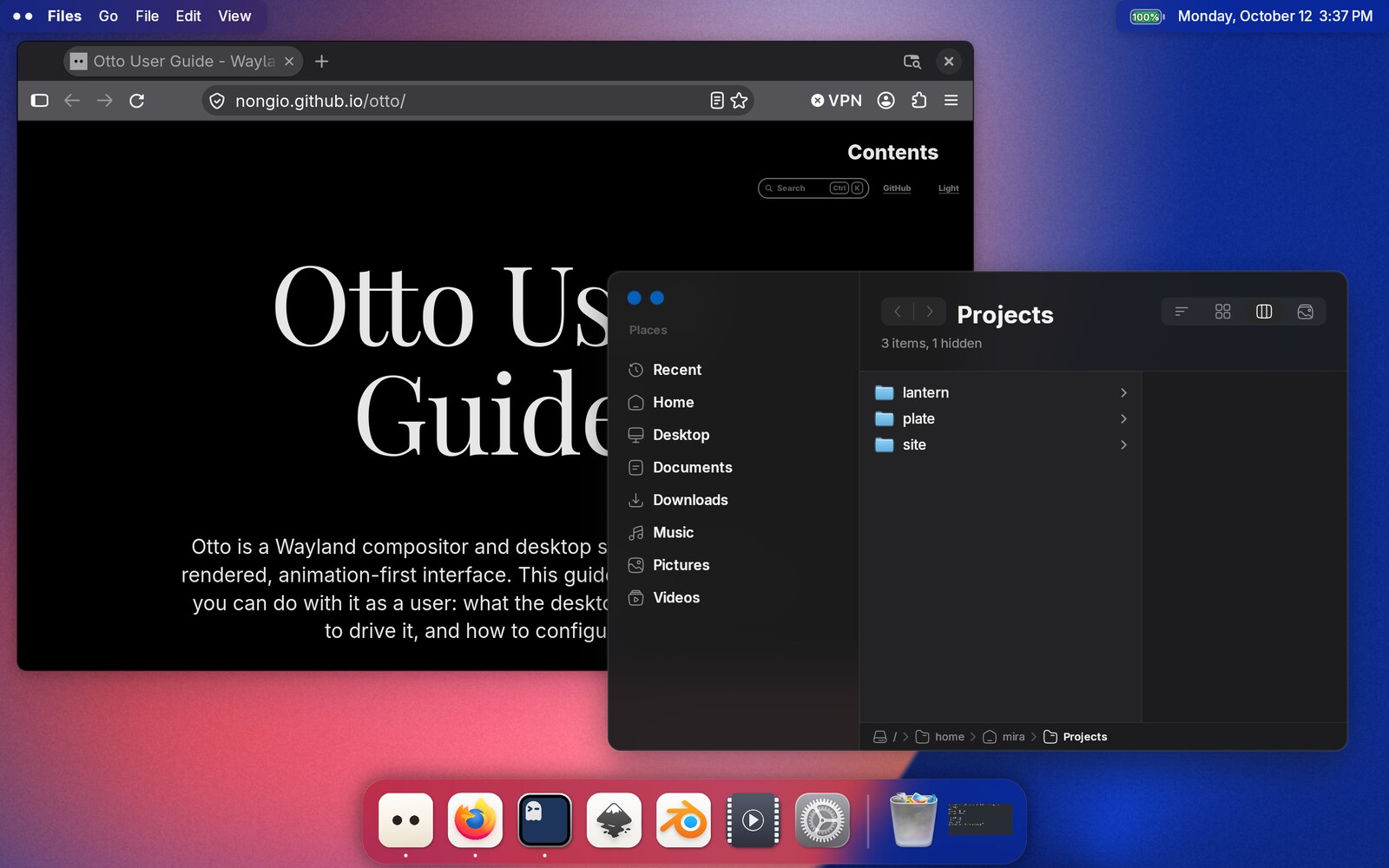
The Dock
The strip along the bottom edge, or down the left or right edge if you move it there. It is part of the compositor, not a separate app.
It holds three groups, in order along the dock: bookmarked launchers (apps you pinned in the config), running applications, and minimized windows.
- A running app carries a small dot under its icon.
- Icons magnify as the pointer approaches.
- Hovering an icon shows its name in a label beside it.
- Clicking a running app raises and focuses it; clicking again cycles through that app’s windows. Clicking a bookmark launches it, or focuses the existing instance.
- An icon bounces while a launch is in progress, so you know the click registered before the window appears.
- Clicking a minimized window restores it with the genie animation.
- Right-clicking an icon opens a menu: open the app, quit it, or keep it in the dock. Dragging an icon along the dock reorders it.
- An icon can carry a badge: the count of notifications that app has outstanding, published by the dynamic island.
The dock can auto-hide, move to either side edge, and have its size and magnification changed. Do that from the config, from Settings, or by right-clicking its handle. See Dock.
The Top Bar (otto-bar)
A full-width panel pinned to the top edge of the primary monitor, with frosted glass blur and rounded bottom corners. Three zones:
- Left. The focused application’s name, followed by its global menu (File, Edit, View …) when the app exports one over DBusMenu. Click a title to drop the menu down; arrow keys navigate, Enter activates, Escape closes.
- Center. Deliberately empty. This is where the dynamic island lives.
- Right. System tray icons (StatusNotifierItem) and the clock.
Tray icons respond to left-click (context menu), right-click (activate, usually raising the app’s window) and middle-click (secondary activate).
The bar is a normal Wayland client. Start it from exec_once. See
Top Bar.
The Dynamic Island (otto-islands)
Notification bubbles at the top-centre. At rest it draws nothing — the centre of the bar is empty and clicks pass through. It appears to show:
- Notifications. Otto Islands is a full
org.freedesktop.Notificationsdaemon, so ordinary desktop notifications land here. Each one is its own bubble; bubbles from the same app overlap into a deck. - Live activities. Anything a program submits over D-Bus, such as a running build or a backup.
- Permission dialogs. The screen-sharing consent prompt and output pickers render as an interactive island panel.
Brightness and volume changes are not shown here; they get their own indicator drawn by the compositor.
A new notification arrives already open so you can read it, then settles into a mini circle. Click a circle to grow it to a pill, click again to open it fully. See Dynamic Island.
Windows
Otto is a stacking window manager, not a tiling one. Windows are freely positioned and overlap.
New windows are placed where they overlap existing windows the least, rather than cascading from the corner. Maximize and fullscreen are animated; minimize uses a genie effect that sucks the window into its dock icon.
Decorations depend on what the application asks for. One that requests client-side decorations keeps drawing its own title bar, as GTK and Electron apps do. One that expresses no preference is told server-side and gets Otto’s own title bar, window controls and resize borders. See Window Management.
Workspaces
Each monitor has its own independent set of workspaces. Switching is animated:
the whole workspace slides horizontally. Drive it with Ctrl+1…Ctrl+4, or a
three-finger horizontal swipe.
Exposé
Press PageUp (or swipe up with three fingers) and every window on the current
workspace scales down into a packed grid, each labeled with its title. Hover to
highlight, click to focus, or drag a preview onto a workspace thumbnail to move
the window there.
Above the grid sits the workspace selector: a strip of live workspace
previews with a + button to add a workspace and an × on hover to remove one.
The strip follows you to whichever monitor the pointer is on.
PageDown runs show desktop instead, pushing all windows off-screen to
reveal the wallpaper.
The App Switcher
Ctrl+Tab brings up a horizontal panel of running applications with icons,
names and a blurred backdrop. Hold Ctrl and tap Tab to walk forward,
Ctrl+Shift+Tab to walk back, Ctrl+` to cycle windows within the
highlighted app, and Ctrl+Q to quit it. Release Ctrl to commit.
The panel appears on whichever monitor the pointer is on. See Exposé & App Switcher.
The Lock Screen
Ctrl+Alt+Escape, the power button, closing the lid, or an idle timeout hides
the session behind otto-lock: a centered authentication panel that accepts
your password or a registered fingerprint. The session underneath is untouched
and comes back exactly as you left it. See Lock Screen.
What is not on screen
Some things Otto does not have: a window list or workspace switcher in the top
bar (that is the dock’s and exposé’s job), and per-monitor docks or top bars —
both are primary-monitor-only for now. Configuration does have a GUI:
otto-settings edits the running compositor over D-Bus, and the
TOML file stays authoritative underneath it.